How To Apply Your Photoshop Action
This is a continuation from yesterday's post.
Once you have your Action picked, you can immediately proceed to applying a batch sequence.
Today I'm going to show you how to create an action by resizing one images, then applying it to a folder full. All in Photoshop.
Having to resize a bunch of images manually can be a huge pain. Luckily, Photoshop can do all the work for you.
- Display Actions Window:Select Window from the top navigation menu in Photoshop and choose Actions from the drop down which will display a new window. Click the “Create New Action” button in the Actions window as shown below in the image.
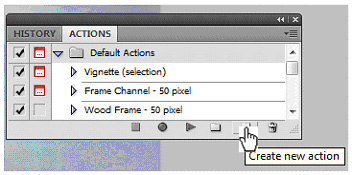
Once you click the “Create new action” button a new window will pop up asking for details about the actions as shown below. Give it a name (i.e. resize).
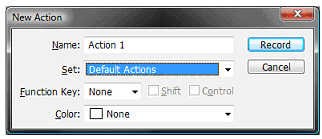
Enter a name for the action and then click the Record button. Please note that after you click the Record button that all movements in Photoshop will be recorded so only follow the steps below to set up the batch image resize.
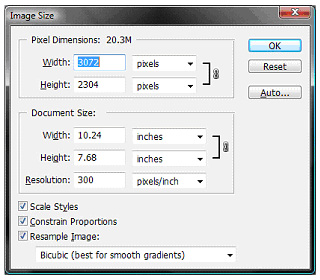
Resize Image: Now we will resize the image we initially opened. Click the Image link in the top navigation and choose Image Size from the drop down which will open the Image Size configuration window as displayed below. Modify the image height or width to your preference.
- Save The Image: Now we want to save the image for the web as a JPEG. Select File from the top navigation menu and select “Save As” from the drop down menu which will now allow you to save the image your working on, be sure to change the file extension to Jpg below and give it a new name.
- Stop Recording: Click the Stop button in the Actions window to stop recording the action.
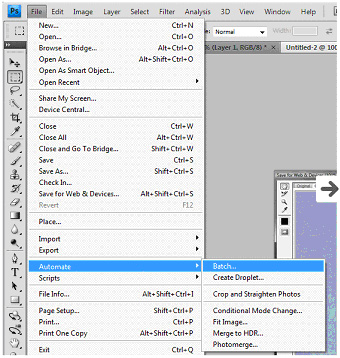
- Open Batch Window: Select File from the top navigation menu and choose Automate from the drop down. In the pop out window select Batch as shown in the below image.
- Start Batch Action: Click the OK button in the Batch window and the Batch Action will start immediately. Photoshop will open each image and resize them down to your specifications.
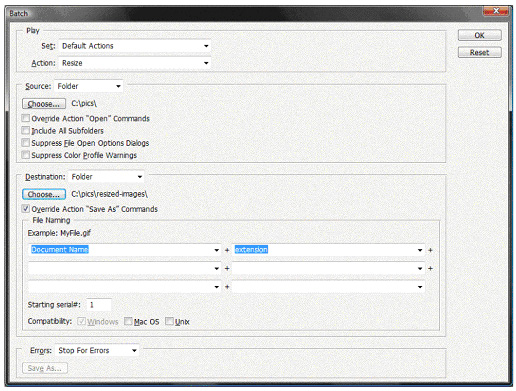
- Once you click on Batch it will open the Batch configuration window as shown below which is where you will set up the Batch job to use the action you created.
Make sure to select the correct action and the proper folders. Make sure to check the “Override Action ‘Save As’ Commands” option since we already have a save command in the Batch Action.
At the top of the Batch menu, select the “Resize" action for "Action". - In the next section, choose "Folder" from the source menu and choose the folder containing the pictures you want to resize. Select the other "Folder" from the Destination menu, and choose the folder you want to save your resized images to.
- Click Suppress File Open Options Dialogs in order to avoid a lot annoying pop-up windows.
Verify Images Resized: Now open the folder where the images were saved and verify a copy of the image with the proper dimensions has been saved into it.
Enjoy!!!
One thought on “How To Apply Your Photoshop Action”
I love your PS blog, very fun & helpful.
Keep it coming. 🙂