Correcting Red Eye
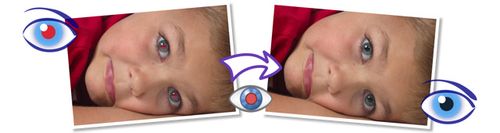
Red Eye; it
happens to us all. You take that an
amazing photo of family and/or friends and when you get a chance to see it’s
been ruined by those god awful,
glowing red eyes from the camera flash.

Fortunately for a lot of us, your
camera has a red-eye removal tool built in, but for those times when it doesn’t
quite work, we can'take advantage of the Red-Eye tool in Adobe Photoshop.
If
you’ve ever used Photoshop, then you should know that with any result, there
are about 4-5 different tools and steps to achieve it. You can use one of the many tools available
including:
1. Brush tool with a Color blend mode
2. Color Replacement tool
3. Healing Brush/Clone Stamp Tool
4. Burn Tool
Any
of the tools mentioned above works, but there are a lot more manual steps involved. During the process with more complicated situations, it can
be a bit more tedious. But the easiest tool to
use, and certainly the more accurate and successful tool would be the Red Eye
tool.
It’s a really
fast and easy process to follow, making it easier to correct your images. Follow the steps below to remove any red eye in
your photos using any version of Photoshop
1. Open the
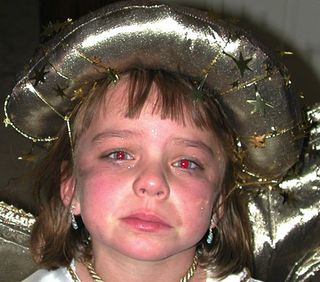
original photo with red-eye showing.
2. Select the
Red Eye tool.
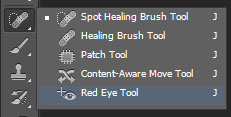
To do so, Click and hold the Spot Healing Brush tool to
reveal its other tool options.
Click the Red Eye tool. The Options bar changes
to show the options for the Red Eye tool.
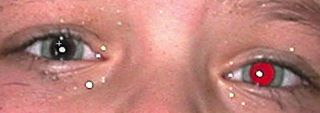
Using the default settings, click the red portion of the eye in your image.
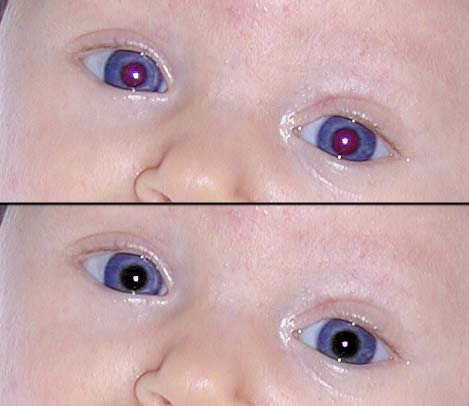
This one-click tool darkens the pupil and retains the tonality and texture of
the eye. Photoshop replaces the red with
a neutral gray. Click in the red area of the other eye. Photoshop again
replaces the red with a neutral gray.
3. If you’re
not happy with the results, tweak one or both of the following options.
From time to time the results aren’t ideal.
With the Red Eye tool selected, go to the top toolbar and tweak the
settings. The Toolbar allows you to
adjust the settings for the Pupil Size and Darken Pupil. By adjusting the figures, you should see more
ideal results.

- Pupil Size:
Use
the slider to increase or decrease the size of the pupil. - Darken
Pupil: Use
the slider to darken or lighten the color of the pupil.
4. You've fixed the image and corrected the Red-Eye.
 To learn about more tools in Photoshop, have a look at the following book Photoshop CS6 All-in-One For Dummies.
Have
fun!!
Greg
One thought on “Correcting Red Eye”
Cool the way to get the red out of Your Eyes
This is Better than eye drops .. ha ha ..
Thanks for the great hot tips
so many Eyes will thank you