Adobe Bridge
Adobe Bridge
Out of all the software/computer programs available in the Adobe Master Collection, the one that gets overlooked quite a bit of time is Adobe Bridge. Photoshop, Illustrator, Premiere are all great applications, and offer users an amazing experience with creating videos, brochures or even touching up photos. But with all the countless amount of photos and files, no other program allows you the opportunity to organize and filter all your content easier and faster.
Adobe Bridge is a very intuitive asset management program, with additional plug-ins and tools. Users can save time and energy looking for files with the new flexible batch renaming tool.
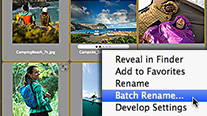
But Adobe Bridge is not just a fancy file renaming program. My favourite feature to use is creating website galleries in minutes. Instead of sizing all the images, creating the pages and more importantly creating the links and mapping of the pages, Adobe Bridge takes care of all of the above and does it in less than 5 minutes.
Creating a Gallery
In using this feature all you need to do is simply find the location of the photos you want to take a look at.
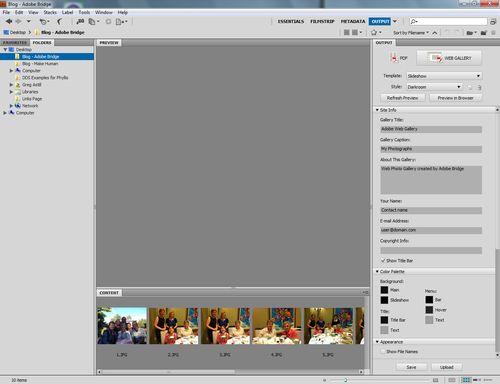
Simply select all or some of the images you want to publish online in a gallery.
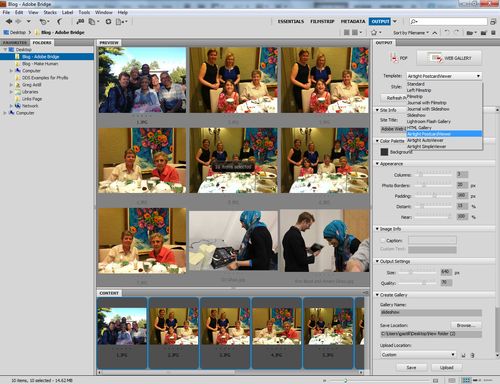
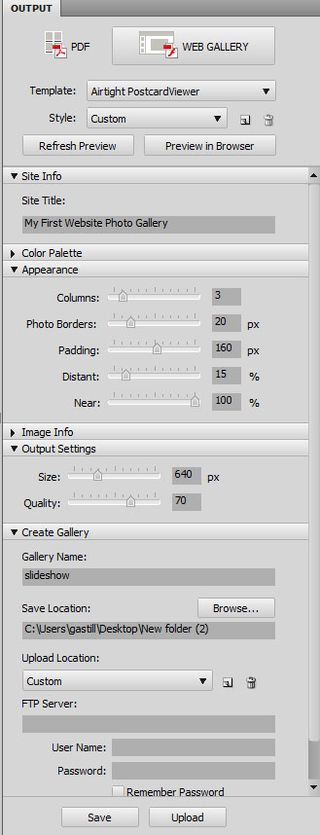
In the top right hand corner of the program, look for the tab output. Under Output you’ll have a choice to create a PDF or a Website Photo Gallery. You can at this time choose one of the different templates and styles and see what it looks like by clicking on the Refresh Preview. In mere seconds, the images are re-displayed in the gallery mode.
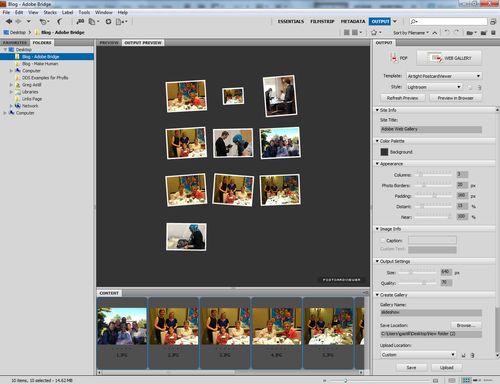
Under the template and style options, additional options are available below where you can alter the size and quality of the images, add columnso or borders and even change the page's properties like the background colour, font and more. Lastly, included in all of the options is a section for saving or uploading the gallery to a mobile location and making your photo gallery available for the world to see.
Below is a great video that goes through the steps I described above.
Have fun!!
Greg
One thought on “Adobe Bridge”
Thanks Greg ..
You are so right. I have avoided taking the time to learn the functionality of Adobe Bridge.
After reading your blog I see I have been missing out on the opportunity to work faster and more effectually.
What a time saver and cool way to make a photo galley for a website in record time, with free templates with the ability to enlarge any photo or click forward to the next slide. As a bonus, Adobe Bridge, creates the links too.
Thanks for waking me up to this ignored program, to it’s pretty useful functions. I like it when the program does all the work.
I will definitely begin using this new find on a regular bases.
..
Thanks for the Great Tip