Accessing TPL eBooks and Audiobooks on your Blackberry Playbook
Update (August 21, 2014): OverDrive is no longer supporting their app for the Blackberry Playbook.
The recently released BlackBerry OverDrive Mobile App and new OS (2.0) for Blackberry Playbook allows users to access ebooks and audiobooks through their device. Some have experienced difficulties getting this app to work properly so we’ve compiled some instructions to help users. Try following these steps to get ebooks working on your BlackBerry Playbook.
Download OS 2
- Tap "Settings" on your Playbook (upper right hand corner)
- Select "Software Updates"
- Tap "Check for Updates" and download the new operating system
Get the OverDrive App
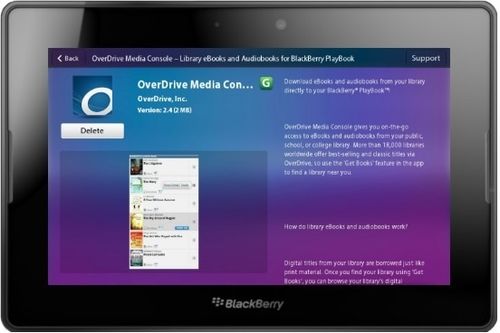
- Tap on the "App World" icon on the Playbook
- Enter “Overdrive Media Console” in the search box
- On the results page, select OverDrive’s mobile app
- Tap “Download” to install the app
- When the download completes, open it and select “Yes” to grant trusted application status
Authorize Your Device.
- Open the OverDrive mobile app already installed on your Blackberry Playbook
- Swipe down from the top of the screen to see the options menu for the app
- Select "App Settings"
- Scroll down the App Settings screen until you see where to enter your Adobe ID and password and tap “Authorize”
- If you do not have an Adobe ID, tap the button to obtain a free ID and fill out the form on the Adobe website
Add TPL to your Library List
- Open OverDrive’s mobile app on your BlackBerry Playbook
- Swipe down from the top of the screen to see the options menu for the app
- Select "Get Books"
- Tap "Add a Library" and enter “Toronto Public Library” in the search box and tap “Search”
- Select any TPL branch displayed in the results
- Tap the star next to the library name to add it to your library list
- Tap the library name to visit TPL’s mobile OverDrive site
Download Ebooks
- From the TPL mobile OverDrive site, use the buttons at the top of the screen to Browse or Search for Adobe EPUB ebooks or MP3 audiobooks
- Check the box to show only available titles
- Once you’ve found a title, tap “Add to Cart”
- When you’re ready to checkout, tap “Proceed to Checkout” from within your cart
- Log in with your library card number and PIN when prompted
- Tap “Confirm Checkout”
- Tap “Download” beneath the title in your OverDrive bookshelf
- The title will download to your Playbook and open, ready for you to enjoy!
11 thoughts on “Accessing TPL eBooks and Audiobooks on your Blackberry Playbook”
Very clear! I have tried the Overdrive eBooks on our Playbook and it works nicely.
Please, can you add this information to your list of printable help documents on this page?
http://www.torontopubliclibrary.ca/books-video-music/downloads-ebooks/ebooks-userguides.jsp
I am probably suggesting something that is in the works anyhow, but just in case! Once the blog post is off the homepage, it is harder for some users to find it.
Thank you very much! I have a blackberry play book and appreciate the support!
Terrific news! Glad this article was posted so I can get my Playbook up and running with library books! Easy to follow instructions makes adding Overdrive to your APPS a breeze! Thanks so much!
I am unable to download overdrive using the app. It says it is unable to install. Is there another way in?
You must download the OverDrive Media Console app in order to access ebooks. If other apps are able to install I would try resetting the device by powering off completely. Ensure that you have updated to OS2 for the app to be compatible with your device.
I can’t the audiobooks to work. The ebooks work very well. But no luck with the audios. Any ideas?
All suggestions much appreciated.
Hi Kathy,
Sorry to hear about the problem you’re having with audiobooks. One thing to be aware of is that only MP3 audiobooks will work on the Blackberry Playbook. (OverDrive also offers a lot of WMA-format audiobooks which, unfortunately, won’t work on Playbook.)
OverDrive has instructions for using audiobooks on the Playbook. If that doesn’t help, please contact us with more details about the problem you’re experiencing.
You were right on. I was trying to access WMA titles. I tried a MP3 title and it worked like a charm! Much appreciated and so timely!
THANKS. I am an Ottawa Public Library user, but finding this page ended a few hours of frustration 🙂
What does the update (OverDrive no longer supporting the PlayBook app) mean? I am hoping it just means they won’t help if you ahve problems. I am hoping it means the app will still work. Failing that, one could just read the books in the browser on the PlayBook.
The app is no longer available for download. People who already have it installed can continue to use it, although at some point, it may simply no longer work.
You’re right about the alternative, Jemo – you can still use the OverDrive Read option to read books in the browser.