iPad/iPhone Tips
Recently, I was helping a patron download movies from hoopla on to her iPad. While I was helping her, I showed her how to delete an app she no longer wanted by pressing and holding on the app and then pressing the x at the top left corner of it. She wasn’t aware of this. I proceeded to show her a couple more tips, like the ones below (the following tips work in iOS 8; they may or may not work in the older iOS):
Forcing an app to close
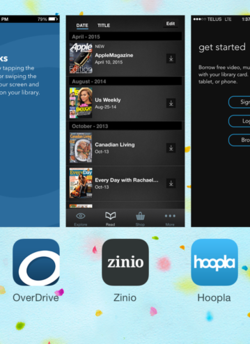
What do you do when an app isn't working or responding? You can force the app to close and then re-open it. Hopefully, this will resolve the issue. To force an app to close, press the home button twice. You'll see previews of your recently used apps. Find the app you want to close and swipe the app up.

Keyboards
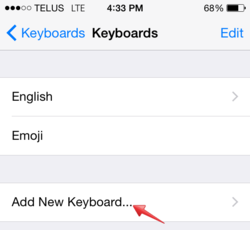
Did you know you can'type in different languages? I recently helped my mom add a Chinese keyboard to her iPad. Here’s how to add a keyboard: Settings > General > Keyboards > Keyboards > Add New Keyboard…
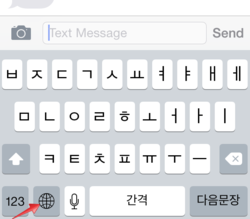
Once a keyboard is added, access it by pressing the globe button to the left of the space bar. If you have multiple keyboards, you can keep pressing the globe button until it toggles to the desired keyboard.
Internet address domain shortcut
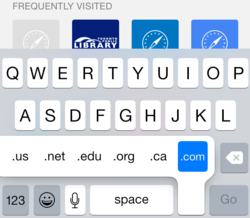
Did you know when you are typing a web address in the address bar there is a shortcut to writing .com, .ca, .org, etc.? To access the shortcut, press and hold the period. Several domain extensions will appear. Select the one you need.
What song is that?
Sometimes a song will come on the radio in the car and I’m dying to find out what song it is. What do I do? There are apps available to help figure this out. Or you can just ask Siri. Siri works as a personal assistant and knowledge navigator. The feature uses natural language user interface to answer questions, make recommendations and perform actions.
To find out the song, first hold down the home button which will activate Siri. Ask Siri “What song is this?”. Then Siri will listen to the song. If Siri is able to decipher the song, it will let you know.
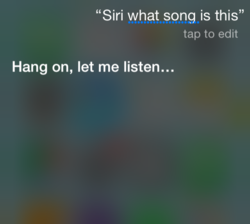
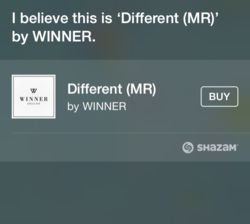
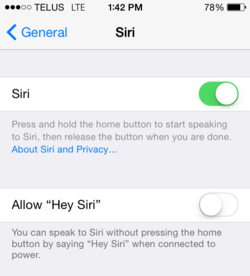
Sometimes, Siri is disabled on the phone. To enable Siri: Settings > General > Siri. If Siri is enabled, a green button will appear next to it. To disable it, simply slide the button over to switch it off.
There are also lots of things you can do on your device with your Toronto Public Library card.
You can download e-books, e-audiobooks, e-magazines, movies, television shows and full music albums. For help accessing these services, visit the websites below:
- OverDrive: e-books and e-audiobooks
- zinio: e-magazines
- hoopla: movies, television shows and full music albums
The North York Central Library also offers free E-Book Drop In sessions every Saturday from 2-3 pm in the Atrium (call 416-395-5672 for more information). Bring your device and questions and we’ll be happy to help you access these awesome services one step at a time.
To learn more about iPads and iPhones, here are some books from the library:
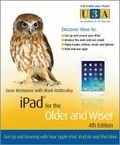
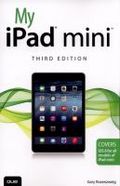

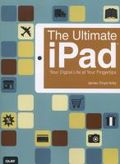
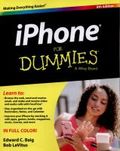


You can access these books online:
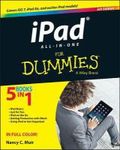
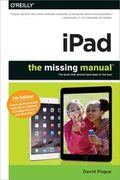
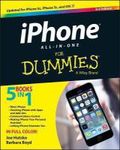

Do you know any useful tips for the iPad or iPhone? If you do, please share them below in the comments. Did you find this post useful? If you did, please let me know and I can share some more tips in the future. Thanks!
One thought on “iPad/iPhone Tips”
You have provided an nice article, Thank you very much for this one. And i hope this will be useful for many people.. and i am waiting for your next post keep on
updating these kinds of knowledgeable things…
ios App Development Company
ios App Development Company