Formatting Blog Posts with New Blog Template
We hope the new blog template will make your blogging journey a little easier and to that end, we've put together a few pointers. Feel free to add additional questions or tips in the comments. Thank you again for blogging for Toronto Public Library!
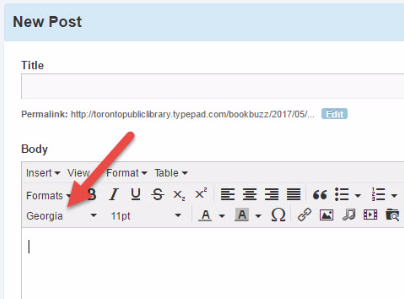
- The library’s online typeface “Open Sans” will automatically be applied to your blog post once it’s published. You do not need to change the “font family” from the Rich Text toolbar. The font will default to a selection from the menu, usually Georgia, Times New Roman or Trebuchet MS in size 11 pt. "Open Sans" is not part of the list. It does not matter what the default font is – just continue to type!
- Larger book covers and images work best in the new mobile-friendly layout. You can keep it simple by featuring one large image per line or two or three in a row (no more than three) to optimize the images on mobile devices.
Here are a few examples of how you should lay out your images:
Helping Young Children Learn Positive Behaviour
"Black Like Me": Celebrating Black History Month with Photography
- When adding captions to your images (including photo attributions), make sure you add the text to the caption field from the image editor.
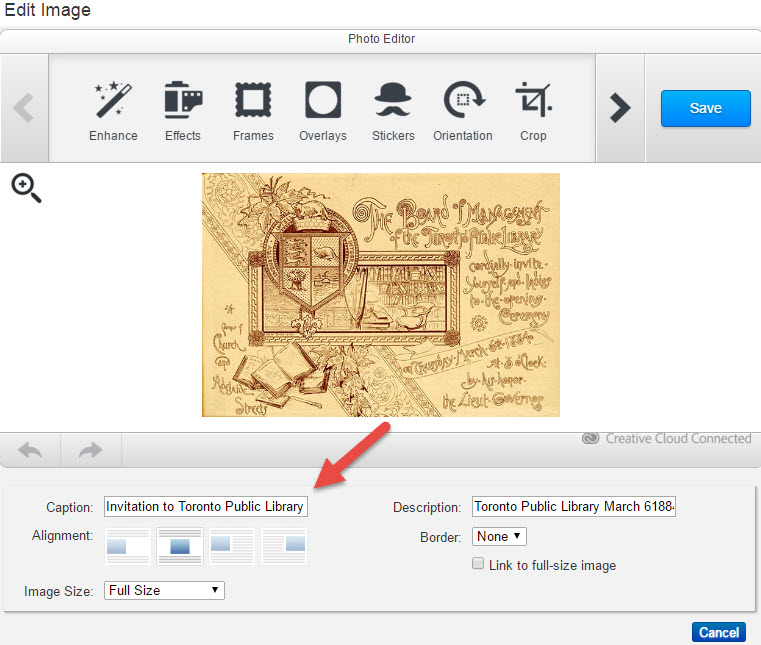
This will ensure that the text style for captions is applied when the post is published, and the text is recognized as a caption when using assistive technology devices.
Here is an example of what the caption text should look like once the post is published on our website: March 6: Happy Birthday to Toronto and Toronto Public Library!
- If you’re going to use a table please make sure that you are not using a fixed width. From the HTML view, your table should look something like this:
<table style=”width: 100%”>
…
</table>

Comments