Getting Started with Gale eBooks

Gale eBooks is a collection of resource and reference books covering a wide-range of subjects. This includes arts, business, medicine, science and social issues. On this easy-to-use site books can be searched at the title or text level, highlighted and marked with notes, downloaded or printed by chapter, and even directly exported to your Google Drive or OneDrive Account.
How to Access Gale eBooks
- Go to tpl.ca and enter ‘Gale eBooks’ directly into the search box, or select ‘Gale eBooks’ from the A-Z List of Databases or the eBooks and Audiobooks section of the site
- Click on Access Online under Gale eBooks
- Enter your library card number and PIN
The Landing Page
At the landing page indicated below, you may choose to log in with your Google Drive (if you have a gmail email address) or OneDrive (if you have an Outlook or Hotmail email address) account. This is useful if you want to export notes and highlights. The link to do that is found in the upper right corner of the page.
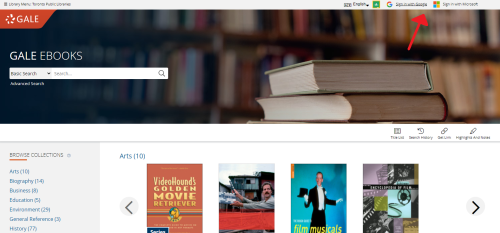
To the left of the login options are page translations options, powered by Google. The language translation feature works rather well. Book titles do not translate, but all links and navigation panes do.

Reading an eBook
Access an eBook by clicking on the book's image. Here we have opened a book from the landing page titled "Worldmark Encyclopedia of Cultures and Daily Life" (searching for titles is covered near the end of this article).

Under the Table of Contents is a list of each item (such as the Cover and Title Pages) and alphabetical entries. We will select from the alpha list "Afar."

Consider getting acquainted with the menu of viewing, saving, and note-taking options located in the top rght.
In-book menus
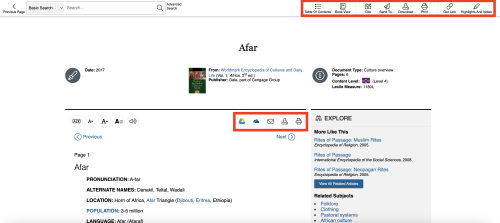
All of these tools relate to saving including saving or printing a copy of the chapter or entry you are reading, as well as changing what format you want to view (and then save) the chapter or entry in.
Below is a great example. Remember the Encyclopedia article on the Afar ethnic group that we saw above? It is easily readable and great for marking-up with highlights and notes (more on how to do that is below), but not as visually dynamic as the original print version with all of the graphic design, font, and layout components a print book has. That can be changed, if you wish, by a simple click on the view tool, changing it from text to book view.
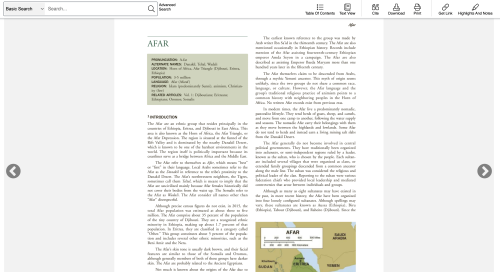
You can also download a PDF version of the book view. If you prefer the text version instead of the book view, that can be done by the bottom set of right-side tools. Simply select Google Drive or OneDrive. This is where being logged into one of these services comes in handy. But if you are not logged in, the icons still appear and you will be prompted to log in at this point.
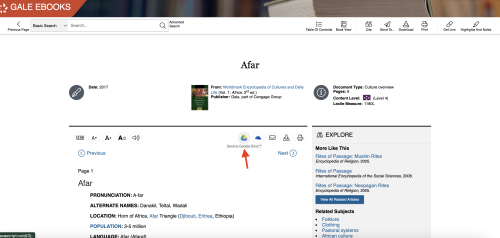
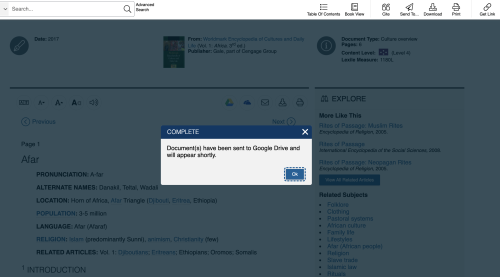
Once you have selected "Save to Google Drive" or "Save to OneDrive", you will get a message like this one, showing that the save was successful.
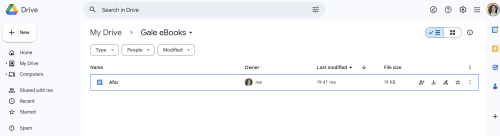
In your drive (example below) you will see that a new folder has automatically been created, titled "Gale eBooks".

Within that folder is the chapter or entry you just downloaded.
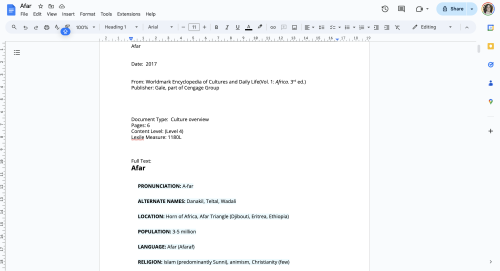
Although it is only text view, there is a benefit to this type of saved format. You can edit the text. This is extremely handy if you are writing a school paper and need to directly copy text to cite in your work.
Other tools in the right-side top menu include:
- Printing – this will print whatever view, text or book, that you have selected
- Sending a PDF – like downloading, this only sends a book view document
- Getting a link to this place in the chapter or entry
Send, download, and print are also repeated in the lower menu as simple icons beside the "send to Google Drive" and "send to OneDrive" icons.

Two other tools in the menu are very helpful if you are writing a school paper or creating a bibliography. Lets first look at "Cite", which will bring up the robust tool below that allows you to create a citation in several formats and/or export them to common tools used when creating a bibliography.

The last tool is "Highlights and Notes". Using this feature is as easy as clicking and dragging your mouse over the text while in text view, just like you would in a word processing program. The dialogue box allowing you to choose your highlight colour and add any notes then pops up automatically.
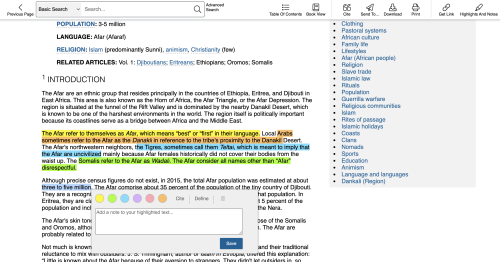
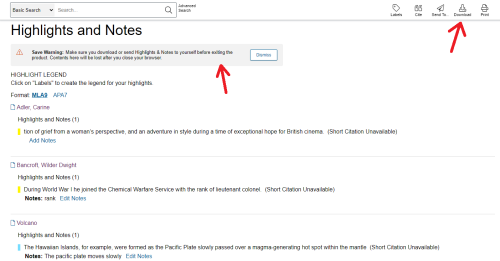
The highlights are retained when you save a copy to your Google Drive or OneDrive, or if you navigate back from another chapter or entry. You can see a master list of all your highlights and notes across all books and chapters or entries by clicking on the "Highlights and Notes" tool in the menu bar. All highlights and notes delete when you leave the site. You must download a copy (available via the tool in the upper right) in order to save them.
The second collection of tools are those on the left side. All of these are dedicated to accessibility and language.
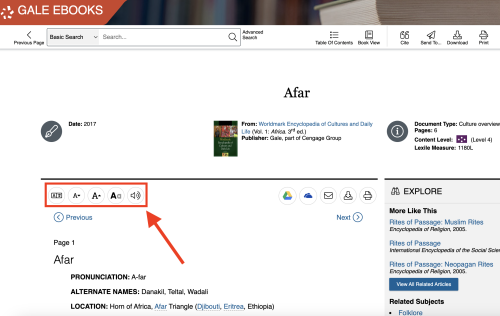
These tools allow you to change the language, increase or decrease font size, and have the chapter or entry read aloud. The text altering tool reveals several useful display options when you select it.
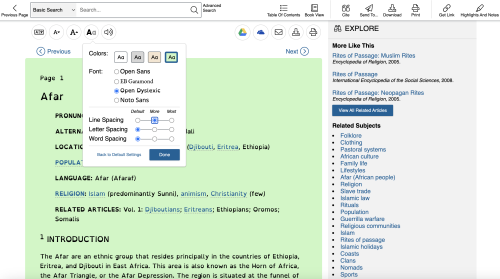
The background colour, font, line spacing, letter spacing, and word spacing can all be altered, which is very helpful in increasing the accessibility of the eBooks in Gale's collection. Of particular note is the Open Dyslexic font.
All accessibility changes (colour, font size, font) do not show up in downloaded, printed, or saved to Google Drive/One Drive chapters and entries. Conversely, language changes will export to Google Drive/OneDrive, and will print, but will not download.
Searching
Searching, including a link to advanced search, is available from every page. Clicking on the expansion arrow beside "Basic Search" also gives you more specific options for searching.
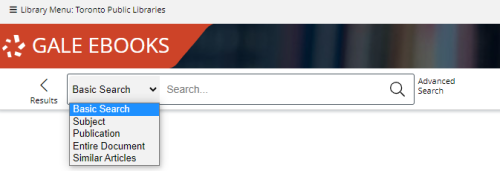
A general basic search will search titles (called "publications") as well as entire documents. Below is a basic search for "Afar" that brings up the book we have been using as an example for most of this guide, as well as other works. Note that when you type "Afar" the smart search lets you focus in on "African people" as a narrowed-down option. This is helpful, since the word "afar" has other meanings as well.
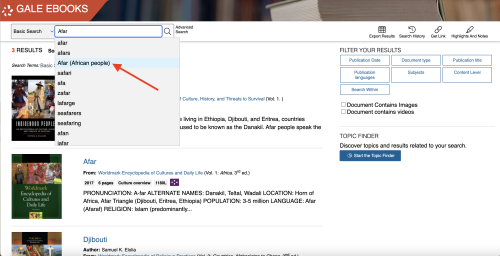
Clicking on the book image will bring up the entire book, whereas clicking on the chapter title will bring up the specific chapter cited as containing "Afar."
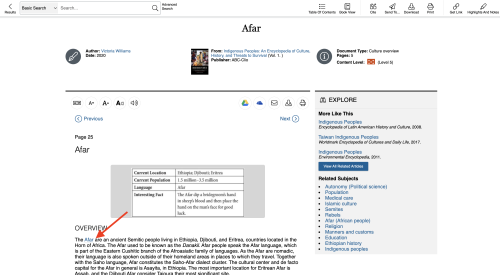
The initial instance of "Afar" is in blue font and is a link, as are related topics for which Gale has other books and articles. This makes associated information easier to find by simply clicking on that link.
For more information or for help, please contact our Answerline service.
Revised: January 15, 2025
Comments