Getting Started with Gale OneFile: News

How to access:
1. Start from the Digital Newspapers section on the Toronto Public Library website.
2. Under Article Databases click on Gale OneFile: News
3. Click the Access Online button.
4. Sign in with your library card number and PIN.
5. Gale OneFile: News can be accessed in library or at home.
E-Resource Content
- Gale OneFile: News provides full text articles from Canadian and International Newspapers
- Gale OneFile: News has full-text articles from multilingual publications as well as issue archives of available publications
- Gale OneFile: News allows searching by topic, keyword or publication
- Gale OneFile: News does not include photos with articles. But you can filter your search for images only.
Searching Gale OneFile News
From the homepage Gale OneFile: News offers multiple searching options.
There is a basic keyword search bar as well as an Advanced search button. There are also links to their Topic Finder, Subject Guide Search and Publication search.
Use the top right menu to see other Gale Resources through Title List, keep track of your Search History, get a web link to your current page through Get Link, and Highlight text.

Basic Search
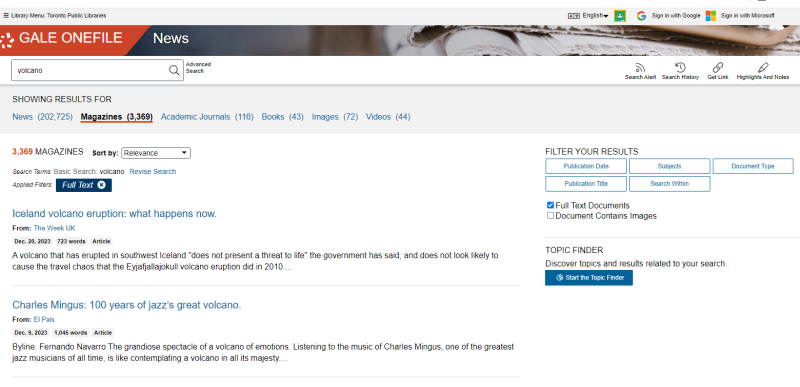
The search bar on the home page allows for basic keyword searching through the database. You can use the top bar to filter what news sources you’d like to see results from. Gale OneFile: News will default to magazine articles. You can use the side panel to filter your results further.

Search Alert subscribes you by email or RSS feed to any additions to the search topic.

Search Results
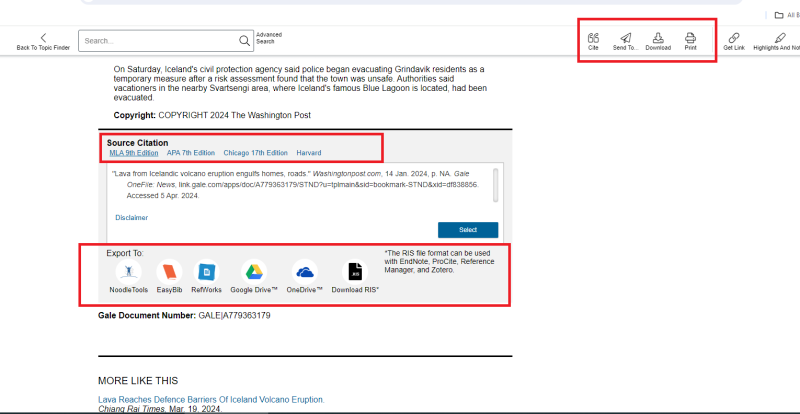
Once you find an article that you want to read, click the link and you will be taken to the page with the text from the article with your keyword highlighted as well as information about the publication date, publication source and the document type and length.

The page also features on the left above the article accessibility features to alter text language, text size and colour as well as the option of having the text read aloud. On the right above the article are options for exporting the text to your Google drive, iCloud and email as well as downloading a PDF version and printing.
Scrolling to the bottom of the page allows further options for citation including links to different citation formats, exporting the citation to common applications such as EasyBib. The top search bar also allows a quick link to the article citation, an option to send the article to other applications and email as well as a download and print button.
Advanced Search
The advanced search feature involves more parameters for searching and includes a drop down menu of phrases to include or not include in your search.
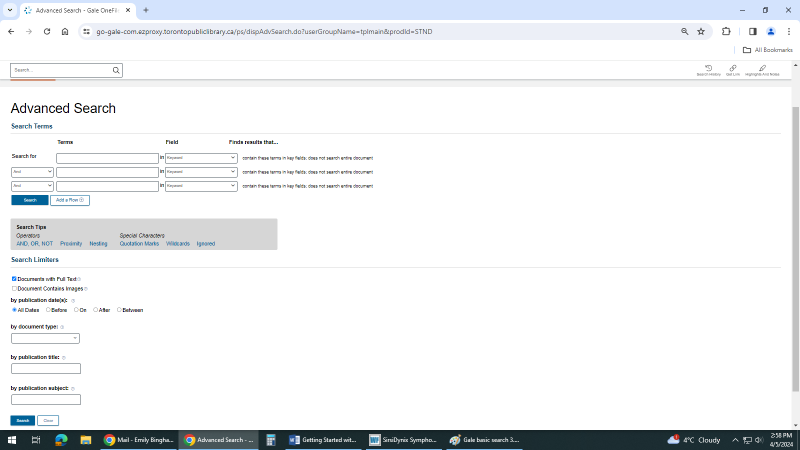
You can change your search from keyword to other search fields through the drop down menu.

Search tips using special characters and Boolean operators are provided. Clicking on each search tip will explain the function.

Topic Finder
Topic Finder takes the titles, subjects, and approximately the first 100 words from a subset of your top results and feeds them into an algorithm. Keywords shown in the graphics are those found most often in the text with your search term.
You can'then click on the clusters to see more results in each as well as links to the articles that mention the topic.
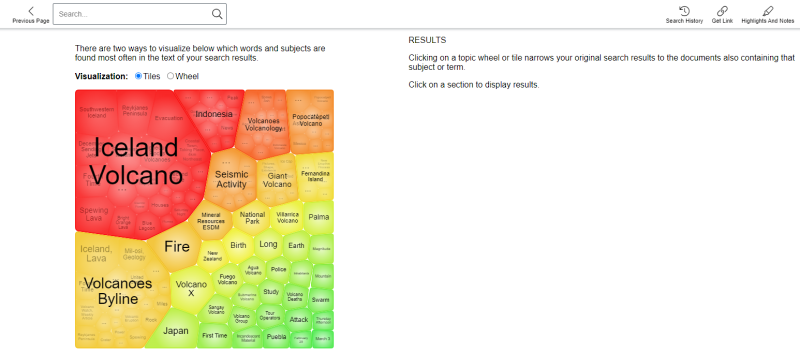
You can'then click on the clusters to see more results in each as well as links to the articles that mention the topic.

The same information can also be displayed in a wheel by clicking the wheel option in visualization.
Subject Guide Search
Subject Guide Search allows us to use keywords to find subject terms that are linked to articles as well as the number of results for each subject. It also suggests alternative subject terms related to your search term. For example, under volcano damage we can see a link to natural disaster damage.
Under subject search you can see Subdivisions and Related Subjects, these both open further menus with subject terms that may be related to your initial keyword search.

Publication Search
Publication Search allows you to filter your search to specific publications as well as allowing you to filter for fields such as format, dates, subject, language and country of publication.
Publication Search also allows you to see a full list of publications in the database by clicking on the “List All Publications” link above the search bar.
This will lead you to an alphabetical list of publications as well as filtering features on the right hand side of the screen
Clicking on a publication title will take you to their publication page with a searchable archive of issues as well as information about the publication itself. It also lets you know the coverage range that Gale OneFile: News has for the publication
From this page you can scroll through the news archive by year and date as well as subject searching only in the selected publication
If a publication has a range of time without coverage through Gale OneFile: News a clickable link called Show Coverage Exceptions will appear above the Full Text coverage box.
For other help not covered by this guide Gale OneFile: News has a bar at the bottom of every page showing their extended help features, privacy policy, accessibility policy and terms of use. It also shows on the bottom right when the database was last updated.
For more information or for help, please contact our Answerline service.
Revised: January 16, 2025
Comments