Getting Started with Biography in Context

Biography in Context is a comprehensive database of biographical information covering people from around the world, throughout history, and across all disciplines and professions and subject areas. It includes over 700,000biographical entries, videos, audio selections, images, primary sources, and articles from major periodicals and newspapers. The database includes full-text articles from nearly 250 periodicals on notable individuals from both the past and present. Search for people based on one or more personal facts such as birth and death years and places, nationality, ethnicity, occupation or gender, or combine criteria to customize a search.
.
How to Access
- Go to tpl.ca
- Type “Biography in Context” in the search box
OR go to the menu bar > eResources & Research > A-Z List of Databases > Biography in Context - Click Access Online
- Enter your Library card number (14 digits) and Password/PIN
- Select Continue
Searching
The following icons are available on the top right hand side of the main page to start a search or browse the database: or perform other activities.
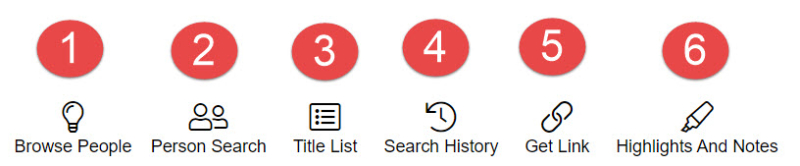
- Browse People > takes you to a page where you selectTopics: from a drop-down menu and browse the result list to find biographical information.
- Person Search > allows for specific person search and use of Search Limiters: Ethnicity, Gender, Nationality,Occupation, Place of birth/death, and Date of birth/death.
- Search History > lists all searches performed in the Gale InContext database.
- Get Link > produces a url to the current page you are working on- use the link to return to the page.
- Highlights and Notes > keeps track of any descriptions written, thoughts recorded, concepts highlighted, or searches documented within the resource
You can also click on Gale’s featured People of Interest on the middle of the main page or scroll further down toBrowse People by selecting a category and clicking on one of the suggested people under each category.
Basic Search
- Enter the name of a person you are researching and the database will begin offering suggestions. Suggestions withPerson Guide indicate that there is a topic page on that person. If there is no topic page, your search will return results with all the information sources in the database that have been tagged with the name of the person your are searching.
- select a suggested name
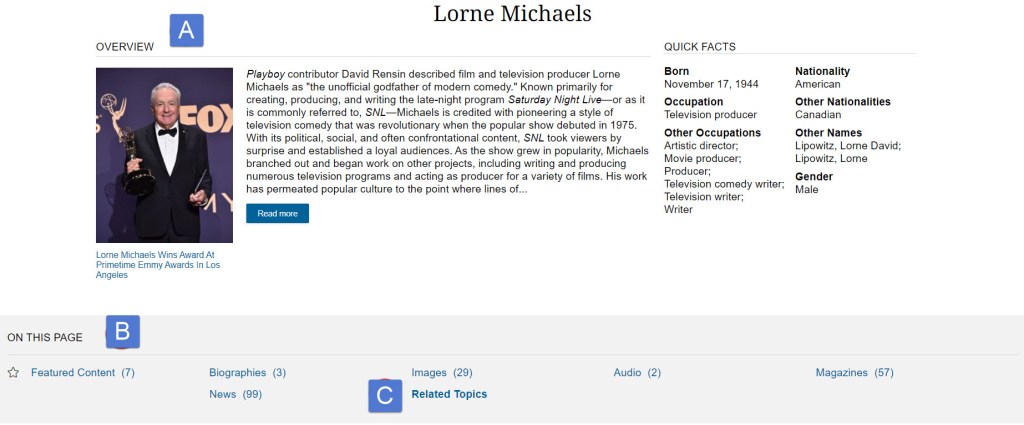
If your results return a Topic page, then you will be provided with:
- a biographical overview of the individual including introductory details about the person’s life or career and quick facts (birth, occupation(s), nationality and other names).
- an area with links to the different types of information sources tagged with that individual, along with the number of sources available in each category – including images, magazines, websites’ biographies, videos, news, etc. as well as related topics.
- Related Topics link to other individuals.
Advanced Search
To conduct an advanced search, locate the “AdvancedSearch” link near the main search box. The Advanced Search page provides search options for:
- Advanced Search > where you can use the multiple search boxes and dropdown menus to specify your search criteria: keywords or phrases; and fields e.g. specify where the database should search for your terms (e.g., title, author, subject, full text) connecting each search boxes with Boolean Operators (AND, OR, NOT) to refine search results and/or apply Search Limiters (document type, publication date, content type, content level, etc.)
- Person Search > enter the name of the person you are looking for otherwise apply Search Limiters (Ethnicity,Gender, Nationality, Occupation, Place of Birth/Death, orDate of Birth/Death) to return results that match your search parameters.
- Topic Finder is a quick visual tool of other subjects related to the your search topic. The visuals allow you to further explore related topics and their connections with each other. Search results are analyzed and represented in a graphical wheel or tile layout. This helps you to identify key themes and other areas to research. You can'toggle from Tiles or Wheel and clicking on a topic tile or wheel will narrow your original search results to the documents also containing that subject or term.

Search Results and Features
Search results can be:
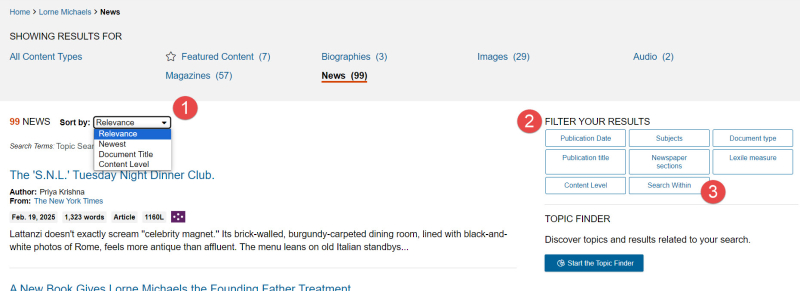
- sorted by: Relevance, Newest, Document Type, or ContentLevel
- filtered by: Publication Date/Title; Subjects; DocumentType; Content Level; etc.
- searched within the results
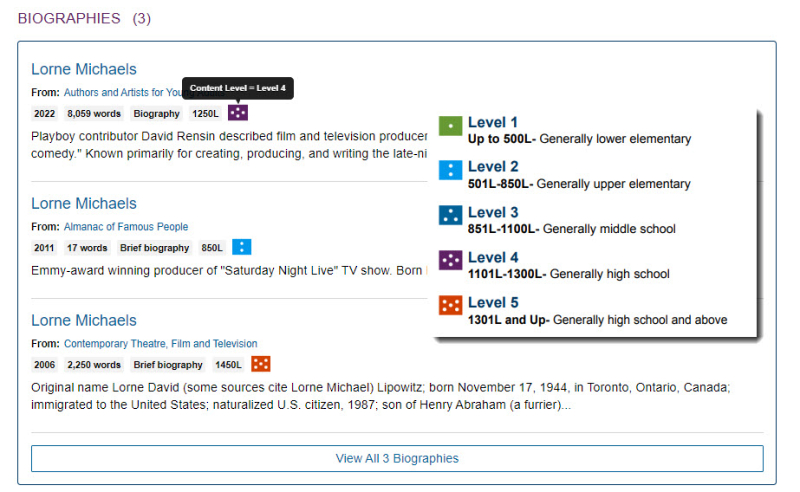
Search results have Content Level indicated by coloured dice-like icons. Each document is assigned a content level based on their Lexile measure, or target audience if there is no Lexile measure.
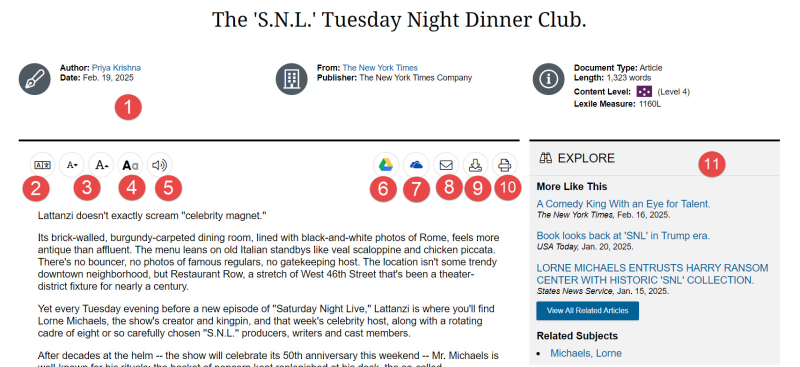
Click on a search result and the document / article will open where you can:
find information about the article: author; date; publisher, etc.
- translate the article
- increase/decrease the font size
- display options to make the article more visually accessible
- listen to the article being read
- export the article to Google Drive
- export the article to OneDrive
- email the article with option to send as .pdf or citation
- download the article
- print the article to .pdf
- explore more for similar articles or click for related articles or subjects
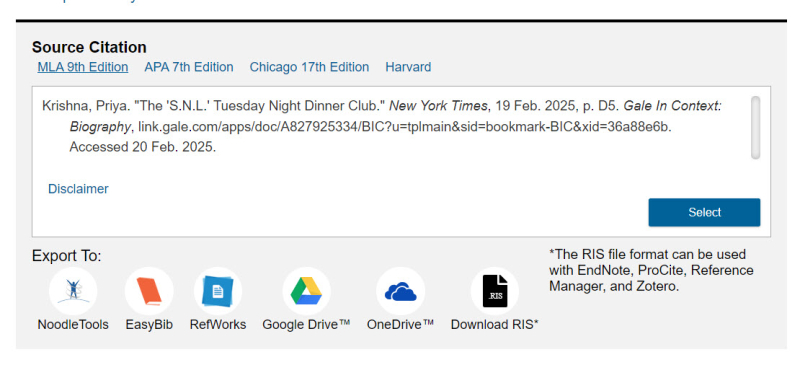
At the end of the article, you have a number of citationoptions (APA, MLA, etc.) that can be exported to various citation tools (EasyBib, RefWorks, etc.)
Other
The main page of the eResources has the following helpful links:
- Educator Resources has tip sheets, tutorials, and short recorded webinars
- Help provides explanation to all the Help Contents of theeResource (searching, document tools, reading levels, etc.)
- Dictionary is where you can search for the definitions of specific terms in Merriam-Webster’s Collegiate Dictionary.The Dictionary is accessed through Highlights and Notes or in the page footer,

For more information or for help, please contact our Answerline service.
Revised: March 17, 2025
Your Toronto Public Library card gives you access to a variety of subscription online services.
Use these guides developed by library staff to help you get started or learn more.
Comments