Getting Started with Mergent Market Atlas
Getting Started with Mergent Market Atlas
How to Access Mergent Market Atlas
- Go to tpl.ca and type in ‘Market Atlas’ in the search box. Select Search.
- Under Mergent Market Atlas, select Access Online.
- Enter your library card number and PIN and select Sign In, then Continue.
Overview
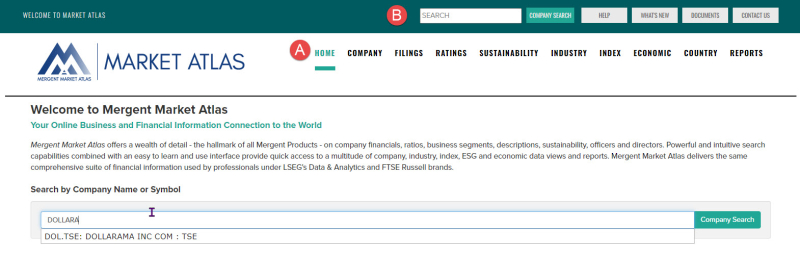
Market Atlas has two persistent menus that appear on the Home Page and at the top of any Market Atlas page. The top menu provides access to a Company Search box and Help resources. Below this is the main menu for Market Atlas. This includes links to the Company, Filings, Ratings, Sustainability, Industry, and Reports sections. Hover over the menu names to get a brief description of the information available in that section.
Tip: Select Home in the main menu to return to the Home Page from anywhere else in Market Atlas. The logo is not hyperlinked.

Company Search
Search by Company Name or Symbol
Company name/symbol searches can be conducted from the home page (A) and the search tool (B) at the top of every Market Atlas page.
- Search for global companies based on name or ticker symbol. As you start to type the company name or ticker symbol, results will appear below the search box.
- Select one of these results to get that company’s profile. Pay attention to the stock exchange to make sure you select the correct company profile.
For example: A search for Dollarama results in the ticker symbol DOL used at the Toronto Stock Exchange (TSE).
Each company profile provides an overview that includes description and contact information and key statistics. This page can be printed (A). Other tabs (B) provide information on news, financials, analysis, charts, filings, executives, ownership, sustainability and Mergent reports.

Search by Company Characteristics
Search for global companies based on characteristics of location, stock exchange, industry classification, revenue, number of employees or many other criteria.
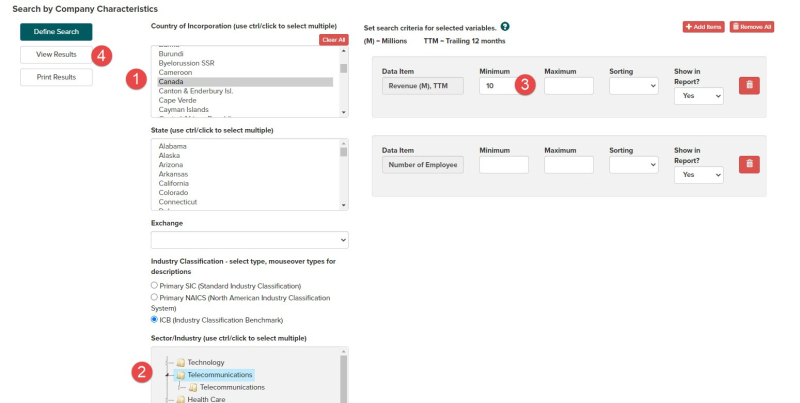
For example, to create a list of public companies located in Canada, that are in the telecommunications industry and have a revenue of over 10 million:
At the Home Page, make the following selections …
- Under Country of Incorporation, select Canada
- Under Industry Classification (ICB), select Telecommunications
- Under Set search criteria, enter 10 for the Minimum next to Revenue
- Select View Results on the left; Select Print Results on the left or Export on the top left of the results.
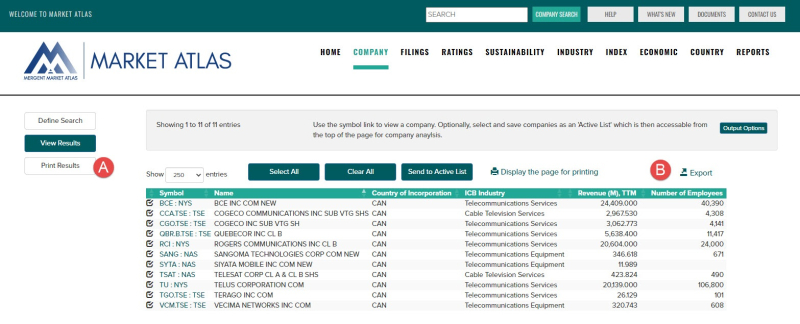
This will provide a list of 11 companies. Select the ticket symbol to view the company profile for any of the companies on the list.
Select Print Results (A) or Export (B) to save the list to a CSV file.
Compare companies
The financial data, financial ratios, business classification and descriptions of two companies can be compared side-by-side.
Using the results from Search by Company Characteristics,
- Select the ticker symbol for the company being compared to (i.e. for BCE INC COM NEW, select BCE: NYS).
- Select the Analysis tab.
- Select Comparison in the menu on the left.
- Enter the second company name or ticker symbol in the “Compare To:” box (i.e. type in RCI and select from the search assist).
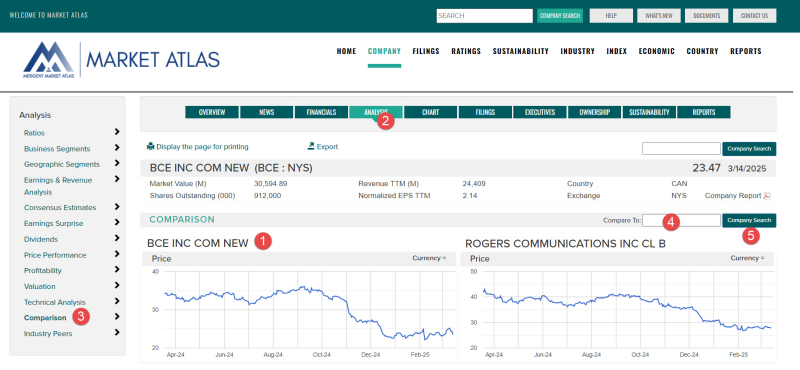
This report can be printed or exported.
Industry information
Explore and compare industry characteristics data through charts and tables as well as access PDF reports based on Industry Classification Benchmark (ICB) classifications.
- Select the Industry tab at the top of the page.
- This tab starts with key comparisons of industry sectors. Select the bar graph next to any of the industries listed to view the characteristics of that industry.
- ICB Industry Reports are available through the Reports tab.

Industry Characteristics:

TIP: Find a company’s ICB classification in the Overview tab in the company profile.
Stock Reports Plus
Mergent Market Atlas provides access to Stock Reports Plus from LSEG. These stock rating reports provide analysis on key trends in earnings, fundamentals, and more.
Select Ratings tab in the main menu and search for Rating Report by:
- Entering a company name or ticker symbol for a specific stock in the search box above the list (A), or
- Use the options on the left (Company Name or Symbol, Rating, Market Capitalization, Country, NAICS Sector) to create a list of stocks that match your criteria (B).
Select the file in the Rating Report column to download the report in PDF.

Want to Learn More?
Select Help in the toolbar at the top of the page for detailed information on using Mergent Market Atlas.
For related electronic resources, have a look at Financial Post (FP) Advisor, MarketLine and Value Line.
For more information or for help, please contact our Answerline service.
Revised: May 13, 2025
Comments