Zinio eMagazines Now Easier to Use
- Only one Zinio library account is now needed to checkout, read and manage your magazines on a computer. You won't have to create or sign into a second Zinio account to read a magazine
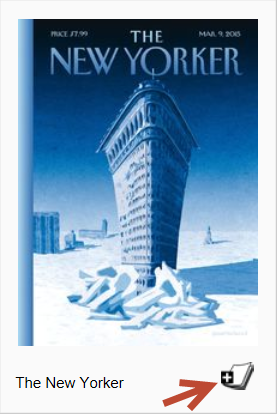
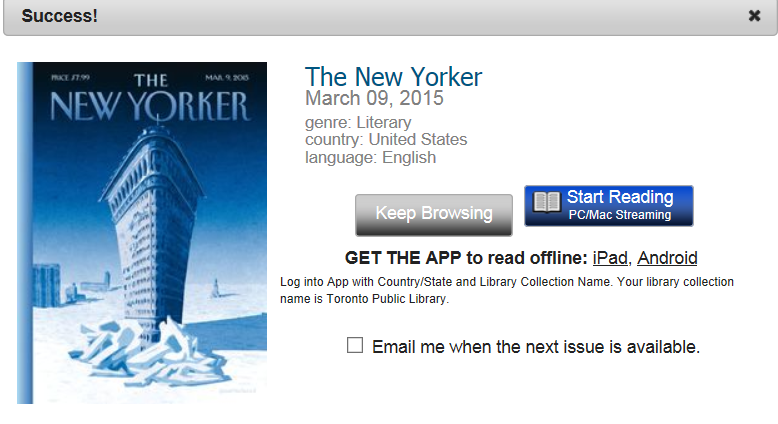
- The current issue of a magazine can be checked out right away by using the new Checkout Now icon found on the bottom right of the magazine cover
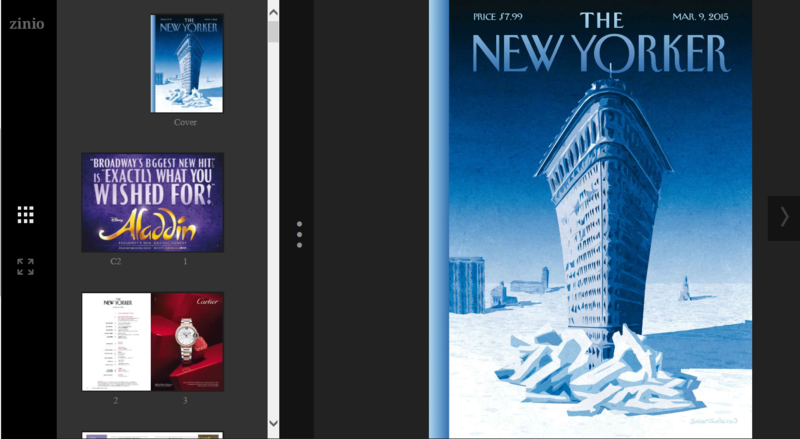
- You can start reading the magazine instantly in your browser
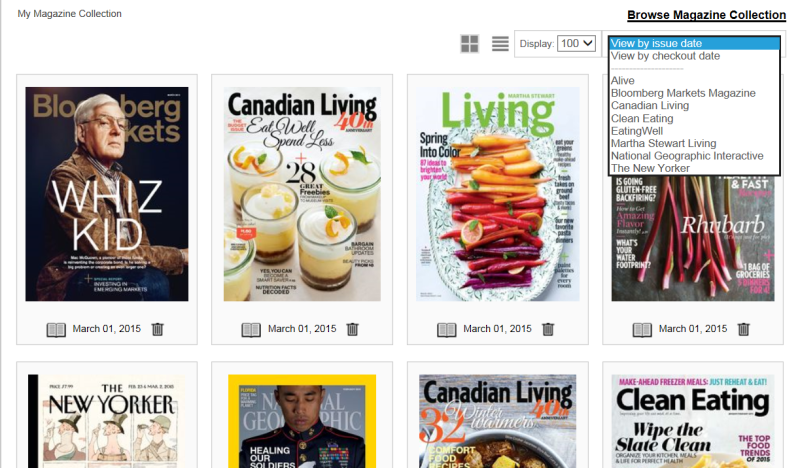
- You can change your display preferences or delete issues within your account by selecting My Collection after signing in at Zinio eMagazines
New Zinio for Libraries app for iPad and Android users (4.0.3 and up)
- There is a new Zinio for Libraries app available for iPad and Android . The new app is intended for users who only borrow magazines from the library as it does not include an option to purchase magazines. It does not replace the original Zinio app; if you have a paid account you can continue to use the original Zinio app to manage the magazines you have bought as well as those checked out from the library
- If you download the new Zinio for Libraries app it may take a week or so for your older checked out magazines to appear. If you want to read those issues, you can continue to use the original Zinio app
- When you want a new magazine you must always start at Zinio eMagazines; the app is for reading only.
- Note: The New Zinio for Libraries app for iPhone is scheduled for release at the end of April
Have fun reading your favorite magazines!
 |
 |
 |
 |
 |
 |
 |
 |
4 thoughts on “Zinio eMagazines Now Easier to Use”
Have we lost the ability to access articles from the magazine’s Table of Contents with this new system? Is anyone else having a lot of trouble zooming in and out on the type as I did easily with the old version? I am using a laptop browser, Windows 7.
Thank you for your comments.
The Table of Contents icon is not available for all magazine titles and issues. If it is available (on the left in the viewer) you can click it, select a section and then an article. You need to click the Table of Contents icon again to collapse it and start reading the article.
If the Table of Contents icon is not available you should be able to use the Skip to page icon on the left to see the Table of Contents page. There may be interactive links within the Table of Contents page for some magazine issues so that you can go quickly to a specific article of interest.
The Zoom feature has changed a bit and now uses the technology of the viewer. Did you try positioning the cursor to where you want to zoom and then double tap on the touch pad or double tap the left button of the mouse?
For your interest there is a help link on the Zinio page to submit an online support inquiry. The vendor will try to respond within 24-48 hours.
Sorry to be dense… But from other posts on your web site it looks like I need three accounts to read a magazine?
“IMPORTANT: When using Zinio eMagazines for the first time, you will need to set up two accounts. The first is with RB Digital, the provider of the Toronto Public Library’s eMagazine collection. The second is with Zinio.com, the provider of the software to view the magazines. ” plus, of couse, our library account (which seems to expire without warning). Am I on the right track now?
Thank you very much for your comment. Changes to Zinio eMagazines were introduced in 2015. A second account at Zinio.com is no longer required but customers may still want to access our Zinio eMagazine titles this way if they also have paid subscriptions. It still works this way.
Here is a link to a current Getting Started with Zinio eMagazines page on the library website:
http://www.torontopubliclibrary.ca/books-video-music/downloads-ebooks/zinio-help.jsp
Hopefully you can set up an account and start reading.
Please let us know if you have any other questions.