Email at Year-End 2013: Where Does One Go From Here? Part 1: Gmail
(Credit: YouTube – Gmail displaying images instantly without malware threat soon)
(Credit: YouTube – Google dropping the "Display All Images" option in Gmail)
As 2013 draws to a close, email users may wish to reflect upon what system they use in comparison with the alternatives, taking into consideration any recent developments. Many people use one of the big three web-based email options, viz.: Google’s Gmail, Microsoft’s Outlook (formerly Hotmail), and Yahoo’s Yahoo Mail. The competition between these three options remains strong with attempts to lure users away from one of them to one of the others. First of all, let me say that I have personal email accounts with each of the big three so I will try and remain objective as I write this. First of all, let us take a look at Gmail:
On December 12, 2013, the Official Gmail Blog reported through its blog post “Images Now Showing” that images are now displayed automatically in Gmail accounts across desktop platforms and will be rolled out to mobile Android and iOS platforms with appropriate Gmail apps in early 2014. This contrasts with Google’s previous Gmail practice of asking Gmail users first before showing images in email messages. The justification for the change in practice stemmed from how Gmail now handles images through its own secure proxy servers by transcoding images before delivery to Gmail inboxes to prevent hackers from getting one’s IP address or location, to prevent remote setting or reading cookies in one’s browser, and to prevent the presence of malware or viruses by checking images. However, Gmail users still have the option of having Gmail ask users first before showing images through the following process:
“Choosing not to show images automatically
- Open Gmail.
- Click the gear in the top right.
- Select Settings.
- Scroll down to the Images section (stay in the "General" tab).
- Choose Ask before showing.
- Click Save Changes at the bottom of the page.
To see images in a message, click Display images below in the green box above your message.”
(Credit: Google – Choose whether to show images – URL: https://support.google.com/mail/answer/145919?p=display_images&rd=1 )
Gmail account holders still have the option of permitting or blocking images from email messages sent by specific senders by using either the “Always display images from…” in a green box above the specific message or “Don’t display from now on” (by using the show details icon  ) options.
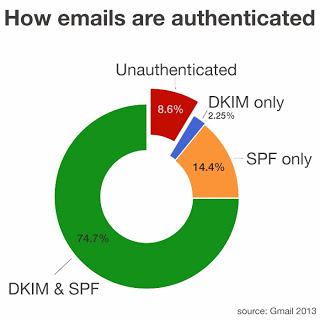
(Credit: Google Online Security Blog – Internet-wide efforts to fight email phishing are working –
URL: http://googleonlinesecurity.blogspot.ca/2013/12/internet-wide-efforts-to-fight-email.html )
In other developments, the Google Online Security Blog reported on December 6, 2013 that 91.4% of non-spam (or legitimate) emails sent to Gmail users came from email senders that have accepted at one of the following email authentication standards: DKIM (DomainKeys Identified (E)Mail with a recommended 1024-bit encryption key to deter cracking and domain impersonation) or SPF (Sender
Policy Framework). Consequently, 8.6% of total email messages sent to Gmail users were not authenticated by either or both of the aforementioned standards. 74.7% of incoming email to Gmail account holders has been protected by both DKIM and SPF standards, while 76.9% of incoming messages are at least covered by the DKIM standard and 89.1% of total incoming emails are protected by at least the SPF standard. Domain owners who never send email through their domains can also
play an important part by establishing a DMARC (Domain-based Message Authentication, Reporting
and Conformance) policy that defines said domains as non-senders of email as well as a reject policy to deter spammers from attempts at impersonation directed at Gmail users’ inboxes.

(Credit: Official Gmail Blog – Download a copy of your Gmail and Google Calendar data - http://gmailblog.blogspot.ca/2013/12/download-copy-of-your-gmail-and-google.html )
On December 5, 2013, the Official Gmail Blog reported that Google/Gmail account holders now have the ability of exporting a copy of Google Calendar data as part of the Google Takeout service while the ability to export Gmail data would be rolled out over a month’s time as a late addition to Google Takeout. The data can be downloaded in the MBOX format in its entirety or in subsets of labels and calendars.
What has the competition been doing? Stay tuned…
For Toronto Public Library customers interested in enrolling in free Email Made Easy workshops, click on Programs, Classes & Exhibits on the Toronto Public Library website, then select Computer & Library Training and narrow the search to Email and Social Networking to find branch locations, dates and times. Otherwise, contact your local library branch staff for information.
(See also: Email at Year-End 2013: Where Does One Go From Here? Part 2: Yahoo Mail )
(See also: Email at Year-End 2013: Where Does One Go From Here? Part 3: Outlook.com Mail )
Comments