Getting Started with O’Reilly Learning

O’Reilly Learning offers the latest streaming books and videos from major technology and business publishers covering topics such as web and software development, management, marketing and more. It includes over 50,000 books, videos, courses, audiobooks and playlists.
While the content cannot be downloaded for offline use, items are always available and multiple customers can access the same item at the same time. No checkouts or renewals needed. O’Reilly Learning can be enjoyed using an Internet browser on a personal computer or mobile device.
There are a few restrictions when using public library access:
- Any personalized features (e.g. playlists, highlights, language) used during a session will not be saved.
- It is not compatible with the O’Reilly app.
- Access to Live Events is not included.
How to Access O’Reilly Learning
- Go to tpl.ca and enter “o’reilly learning” in the search box
- Click on Access Online under O’Reilly Learning
- Enter your library card number and PIN

A limited number of “seats” are available. If access to O’Reilly is not granted initially, check back in 15 – 30 minutes and a seat should then be available.
How to Search O’Reilly Learning
Enter a title, author, topic, publisher or keyword(s) in the search box and select Enter.

English is the default language for search results in O’Reilly Learning. To includes items in another language in your search results, select My O’Reilly in the upper right corner and then select Settings. Select your preferred language(s) under Language Preferences.


Select a Format: Books, Courses, Videos, Audiobooks or Playlists
Under Browse Format, select your preferred format. The search results can be filtered further by publisher, publication date or rating. The filter options are specific to the format chosen. A language filter will appear when more than one language has been selected in the Language Preferences setting.
Search results are sorted by relevance by default. You can change the sort to date added, publication date, rating or popularity.

Select an item
When you find a book, video, audiobook, course or playlist that interests you, select the title or cover image to begin.
The details page for O’Reilly titles includes the topic, publisher, publication date, and a description of the item. The “Time to Complete” is the average amount of time that is required to read, listen to or watch the content. It is provided for information only and does not indicate any kind of limitation of access to this title.
Select Start to open the item.
Using books, videos, and audiobooks
- Each chapter is a single page. Scroll down to read through the chapter.
- To move through a book or video, use the arrows at the bottom to move to the next chapter or select the Table of Contents button on the right.
- Select the search button on the right to search inside the title.
- Select the settings button to change the font size or type and to change the background.
- To enable captions in videos, select the Enable Captions button in the video player.
- The audiobook player has an option to change the speed.
Using Playlists
After searching, filter by playlists to find expert and public playlists. You can create a playlist, but it is only active during the current session.
Browsing O’Reilly Learning

Explore Topics
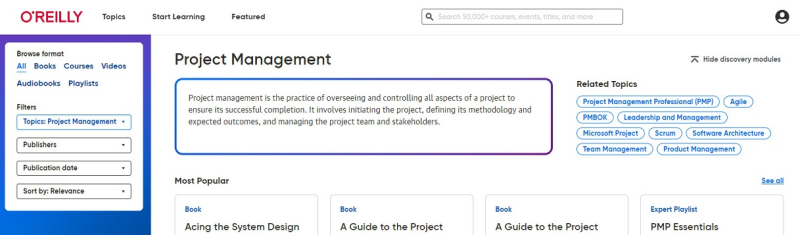
Select Topics to see the list of broad categories such as business, cloud computing, data engineering, data science, design and security. Select a broad topic to view more specific topics. Select one of the subtopics.
A page will open that provides a description of the topic, related topics and a list of popular O’Reilly content on that topic.
O’Reilly Answers
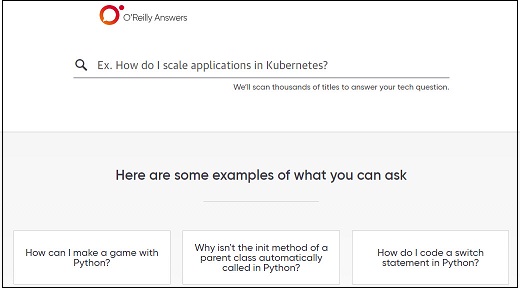
O’Reilly Answers is an advanced natural language processing engine that instantly scans thousands of titles to find and highlight the snippet that may answer your question. Select Answers under Start Learning to ask O’Reilly Learning a question.
For more information or for help, please contact our Answerline service.
Update June 3, 2024
Comments