Getting Started with CPS Drug Information
The Compendium of Pharmaceuticals and Specialties (CPS) is the Canadian standard for information on pharmaceuticals. CPS Drug Information includes monographs and patient information reports for prescription drugs, vaccines, natural health products and medical devices. CPS Drug Information also includes several tools, including the Lexi-Interact drug interaction checker and a pill identifier.
How to Access CPS Drug Information
- Go to CPS Drug Information or https://tpl.ca/resource/cps-drug-information/
- Select CPS Drug Information >> (the title)

- Enter your username or your 14-digit library card number (no spaces) and PIN/Password. Select Log in.
- On CPhA Hub homepage, select Open CPS.
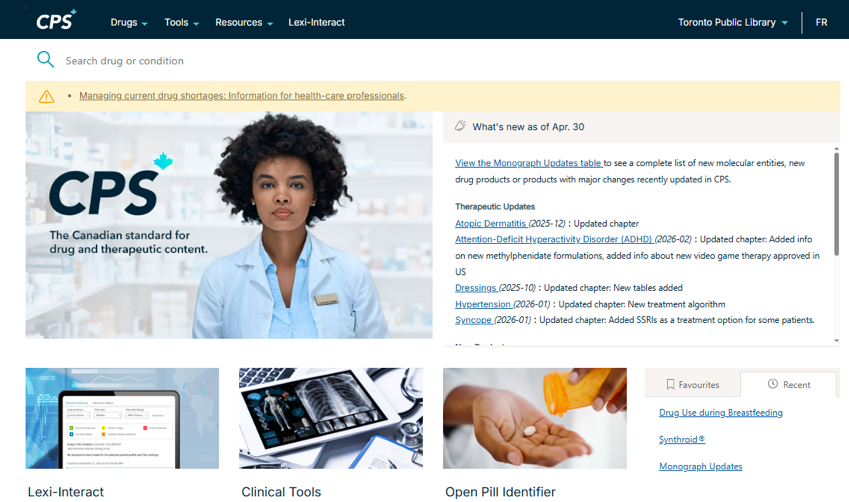
Search for a monograph or patient information report on a specific medication
A monograph is a detailed scientific document on a drug that describes the properties, claims, indications and conditions of use of the drug and any other information that may be required for optimal, safe and effective use of that drug. For more information on drug monographs, have a look at Health Canada’s Product (drug) monographs FAQ. The patient information report is an information package written specifically for patients who may be taking the medication.
To find information on a specific medication:
- Type in the drug or brand name of the medication in the search box. For example, we can search for semaglutide, the name of a drug prescribed for diabetes.

- The search results will show the number of monograph and patient information reports that include this drug. It also includes any reports on conditions that mention this medication.
- Select the monograph and/or patient information report for the drug of interest.
- Scroll down to read the full report or use the keyword search to find a specific piece of information. The monographs will include a table of contents on the left to provide quick access to a specific section of the report.
- Monographs and patient information reports can be printed.
Please note: Selected favourites and search history will be cleared at the end of the session.
Lexi-Interact – Drug Interaction Information
Lexi-Interact is a tool for analyzing drug interactions. Use Lexi-Interact to find out if a medication interacts with an allergy or to view a list of medications that may interact with a specific drug.
- Select Lexi-Interact in the menu

- To search for interactions for a specific drug, type in the name of a drug and then click on View Interactions. For example, a search for caffeine will provide a list of interacting medications.
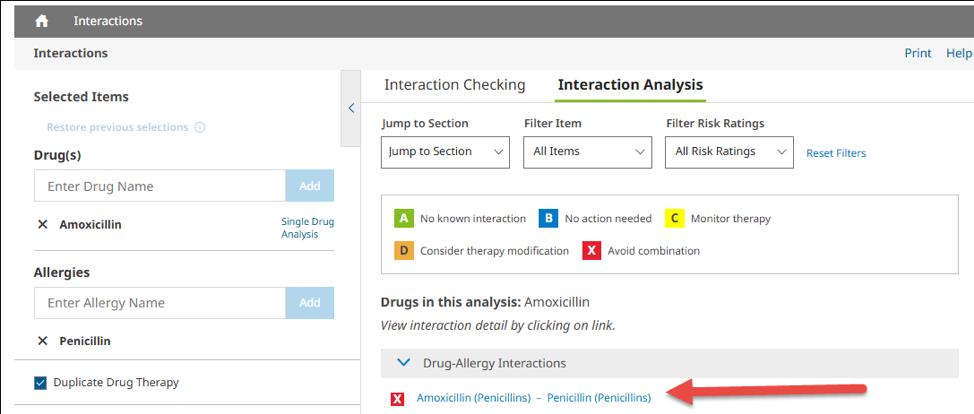
- To search for interaction with an allergy, type in both the name of the drug and the name of the allergy and click on Analyze. For example, a search of the drug Amoxicillin and the allergy to penicillin will result in a report of a drug-allergy interaction.
- Select the link under Drug-Allergy Interactions in the Interaction Analysis tab to read about this interaction.
Pill Identifier Tool
Identify a pill based on the brand name, imprint (text stamped into the pill), form, shape, colour and/or scoring on the pill.
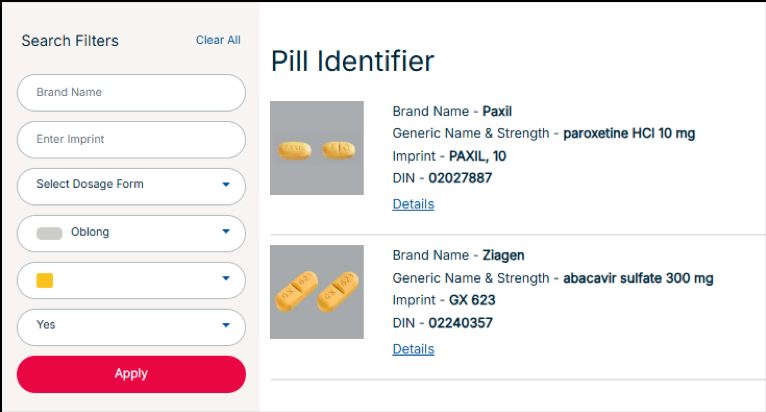
For example, we will identify a yellow tablet that is oblong in shape and scored.
To access this report, search for the drug by brand name and then and select Patient Medication Information in the filter on the left side. This information package can be printed (use Print to PDF in printer settings, if available, to save a digital copy).
- Select Tools in the menu then Pill Identifier.
- Under Shape, select Oblong.
- Under Select Colour, select yellow.
- Under Scored?, select yes.
There are several pills that match this description. Review the information provided (image, brand name, generic name, details) to assist with identification.
For more information on prescription medications and interactions, speak with a pharmacist.
Help with CPS Drug Information
- Contact the Canadian Pharmacists Association (CPhA) directly with questions.
- Schedule a Book a Librarian appointment at a local branch.
- Contact Us with your questions.
Comments