Getting Started with Mergent Intellect

Mergent Intellect is a directory of U.S., Canadian and international companies, both private (about 250,000,000 active companies) and public (about 29,000 active companies).
A company listing (or profile) includes not only contact information (official name, address, etc.) but also information on operations, finances, executives, the family tree and links to industry reports.
Additional company and industry information is in the Dun & Bradstreet Key Business Ratios.
Other information that Mergent Intellect provides is directories of new U.S. businesses and of U.S. residences; U.S. demographics and U.S. consumer data.
Company profiles
- How to find company profiles
- How to find companies by industry
- How to find companies by industry and location
Industry reports
Key Business Ratios
These are “industry benchmarks compiled from D&B®’s database of public and private companies, featuring 14 key business ratios […] for public and private companies in 800 lines of business.”
How to Access Mergent Intellect
- Go to tpl.ca and enter “mergent intellect” in the search box.
- Click on Access Online under Mergent Intellect.
- Enter your library card number and PIN.

How to find company profiles
- Finding a company
- Filtering search results
- Changing the display of search results
- Viewing the company profile
- Downloading and emailing
Finding a company
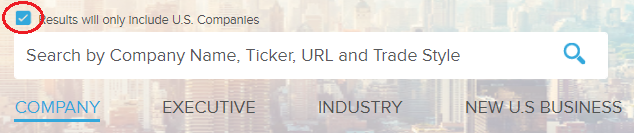
- Remove the tick mark from “Results will only include U.S. Companies” if the company isn’t a U.S. company.
- Enter the company name, or part of it, or ticker (stock symbol), URL or trade style (name by which a business is known, other than its formal name).
- Select the company name from the list of up to 10 names matching your entry to go to the profile of that company; or press enter for search results.
Filtering search results
Search results are in order of sales. Results may be filtered by volume of sales (e.g. $500 – less than $1000 m), number of employees (Employee Types), whether the company is public or private (Ownership Type), headquarters or branch (Location) and country.
Note: Search results may be filtered by additional geographical criteria (e.g. continent, province, city, area code) in Advanced Search. See How to find companies by industry and location.
Select one of the filters below, then select a criterion from the filter menu in the upper left.

Select the Clear Filters symbol to clear the filters.

Changing the display of search results
Select the Change View symbol to change the display of search results to Contact Short View, Tele-Marketing View and Condensed Profile View, from the default Single View. Email is required.

Viewing the company profile
Company profiles are organized by the following headings: Company Details, Financial Details, Industry Details, Executive Details and Family Tree.
The amount of information varies. E.g., sometimes Company Details includes competitors and nearby companies; sometimes no Financial Details are given. More financial details may be found through Key Business Ratios.
- Select the name of the company in the search results. Names in blue are active companies. Names in red are inactive companies.
- Select the browser back button to return to the search results.
Downloading and emailing
Downloading profiles
Select the Build Files symbol to download or email a number of company profiles. Select companies by selecting the box to the left of the name of the company. Profiles may be customized.

Emailing search results
Select the Export records symbol to email a maximum of 20,000 results, that is, the information shown in the search results display.

How to find companies by industry
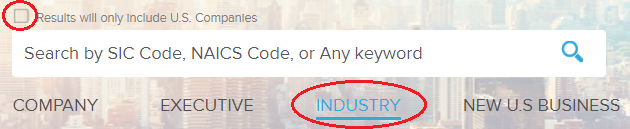
- Remove the tick mark from “Results will only include U.S. Companies” if you don’t want only U.S. companies. Select Industry.
- Enter a SIC or NAICS code* or a keyword. A drop-down menu of 10 results will appear. (SIC codes will appear in all menus.)
- Select an item from the menu OR (when searching by SIC code or keyword) select View all results.**
- Select View Results to see all companies in the industry.
* SIC = Standard Industrial Classification, a system for classifying industries. It has been replaced by NAICS, but is still in use in the U.S. NAICS = North American Industry Classification System.
** When you select an item from the menu, results show the largest 10 companies by sales. When you select View all results, a list of all corresponding SIC codes will appear. Select a code. Results show the top 10 companies.
How to find companies by industry and location
- Select Advanced Search (below the search box).
- Add tick marks (by selecting) to Include Canada Companies and Include International Companies to include companies outside the U.S. in the results.
- Select Industry.

- Select NAICS Code. Then select Secondary NAICS, if relevant.*
- Select a code from the expandable NAICS Tree; or select NAICS Keyword search and select a code from the search results.

- Select Add to Criteria+.
- Select Location to filter the results geographically, from continent to area.

- Select a geographical descriptor.
- Select Add to Criteria+.
- Select Search to generate a list of companies matching the industry and location ciriteria.
* Companies may be active in more than one class of industry. A primary NAICS code is for the activity that generates the highest revenue. Secondary NAICS codes are for all of the other industries the company is active in.
How to find industry reports
Industry reports are from First Research, a Dun & Bradstreet company; additional industry information is in Dun & Bradstreet Key Business Ratios.
- Select Industry and find companies in that industry. See How to find companies by industry.
- Select the name of a company.
- Select Industry Details in the company profile.

- Select the icon for industry reports, then the PDF icon for the report.

How to find Key Business Ratios
Select Help on the Key Business Ratios page (top right) for detailed help in online and PDF guides.
Finding industry reports
- Scroll down and select Key Business Ratios on the Mergent Intellect homepage.

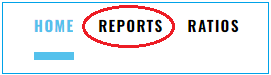
- Select Reports.
- Specify the desired industry by entering a SIC code, a line of business or a NAICS code.*
- Select a code or line of business from the drop-down menu.
- Five years of ratios are displayed. Select Variance or Norms for the display of other information.

Ratios. Hover over the book icon next to the name of a ratio for the description/formula of the ratio. The “Samples” number is the number of companies included in the calculations.
Variance. The Variance page compares the median value of one year with the median values of two previous years.
Norms. Five years of industry financial data averages are displayed on the Norms page.
* To find the NAICS code for an industry, search or browse the NAICS codes in Advanced Search, under Industry; or search by keyword on the Statistics Canada North American Industry Classification System page.
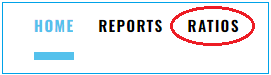
For 10 years of ratios, select Ratios. Then specify the industry by entering a SIC code, line of business or NAICS code. The screen displays one kind of ratio at a time.
Finding company reports
Note: there is more likely to be financial information for public companies than for private companies.
- Scroll down and select Key Business Ratios on the Mergent Intellect homepage.
- Select Reports.

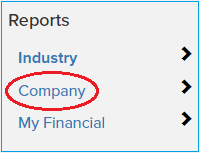
- Select Company, under Reports (on the left).
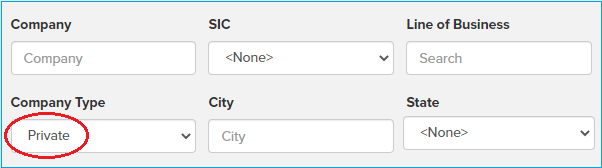
- Change the Company Type from Private to Public and enter the company name in the Company field.
- Select Search.
- Select Search at the top to return to the search page from a company report, either to do a new search or, if there were a number of search results, to return to these results. Select Clear all to do a new search.

Finding company ratios by industry
- Scroll down and select Key Business Ratios on the Mergent Intellect homepage.
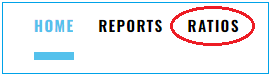
- Select Ratios.
- Select Company, under Reports (on the left).
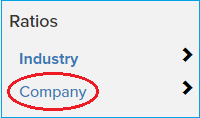
- Specify the industry by entering a SIC code, line of business or NAICS code.
- Filter by year of report and/or by Company Type (private or public).

For more information or for help, please contact our Answerline service.
Comments