Getting Started with Zoom
- What is Zoom
- Joining a Zoom Meeting
- Dial-In
- Participating
- Recording / Replay
- Troubleshooting
- Resources
What is Zoom
Zoom is an online communications platform that allows you to connect with video, audio, phone, and chat. Using Zoom requires an internet connection and a supported device.
There is a test Zoom meeting you can join to familiarize yourself with Zoom and test your microphone, speakers, and camera before joining a live Zoom meeting. For more information about this, go to Joining a Zoom test meeting.
Joining a Zoom Meeting
There are various ways you can join a Zoom meeting.
- via Zoom desktop or mobile app
- via web browser
- via other methods (e.g. email or calendar invitation)
Each Zoom meeting has a unique meeting ID that will be required.
If you are joining the meeting by telephone, you will need the teleconferencing number provided in the invitation.
- click the Zoom link from your email or calendar invitation OR copy/paste the Zoom link to your browser
- click Open Zoom Meetings

Get the most out of your experience, check out:
- Joining a meeting with the invite link
- Joining and participating in Zoom Webinars
- Participant controls in a meeting
- Showing and hiding your video in a meeting
- Muting/unmuting yourself during a Zoom meeting
- Waiting for the host to start meeting/webinar
Dial-In
By default, Zoom meeting invitations designate which dial-in numbers are toll-free by adding “Toll Free” in paren'theses after the number. If you do not see a paren'thesis after the dial-in number, then it is likely a toll number. You can also confirm with the host if a dial-in number is toll-free.
When dialing-in, be sure to have the Meeting ID and Passcode ready. For more information, check out:
- How to determine if your dial-in number is toll-free when you are a participant
- Find your local number at Zoom International Dial-in numbers
Participating
Zoom Webinar
The icons at the top right and along the bottom of your screen provides information about the platform and/or are use for navigating and participating in sessions.
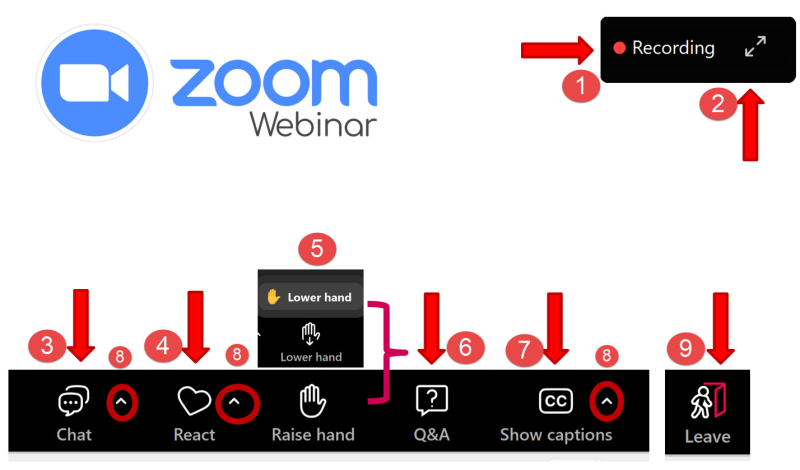
- You are alerted that this session is recorded or if recording is in progress.
- Click the angled double arrows at the top right of the Zoom window space if you wish to expand your screen view.
- Click the Chat to access the Chat box.
- Access emojis through the React icon.
- Click the Raise your Hand icon if you wish to speak/share; and click again to lower it.
- Use the Q&A if you have questions. You can also leave a comment on someone else’s question or upvote a question.
- Closed Captioning is available at the Show Captions icon.
- The chevrons beside selected icons offers more options or settings related to that icon.
- Click Leave to exit the webinar.
Check out:
- Chatting in Zoom Webinars
- How to use webinar attendee controls
- Raising your hand in webinars and meetings
- Using Webinar Reactions
Recording / Replay
Depending on the program, a recording may or may not be available. We encourage public to register for the program if instructed as details and instructions to access the recording is included. If you require assistance in finding a recording, email Answerline to be redirected to the right department that hosted the program.
Notes:
- Online Book Clubs Meetings (e.g. Horror, Mystery, Nonfiction; Novel Novels) are not recorded.
- Talk about Books Webinars are recorded.
Troubleshooting
Common Zoom issues and fixes
- Can’t join a meeting: check your meeting ID and password; Verify your internet connection is stable; or update the Zoom app to the latest version.
- Audio problems (no sound, echo): check your microphone settings in Zoom; ensure your microphone is selected as the correct input device; use headphones to avoid feedback loops.
- Video issues (camera not working): check if Zoom has permission to access your camera; select the correct camera from your device settings; restart your camera.
- Sign-in problems: double-check your login credentials; clear your browser cache and cookies; reset your Zoom password if needed.
- Poor video quality: adjust video settings in Zoom to lower resolution if necessary.; check your network bandwidth
- Meeting crashes or freezes: close unnecessary applications running in the background; restart your computer.
Resources
- Meeting or Webinar/Event?
- Zoom Blog
- Zoom Support (Zoom Learning Centre, Show Me Video Tutorials)
- Zoom Privacy Statement
- Zoom Videos on YouTube
For more information or for help, please contact our Answerline service.
Revised: February 2, 2025
Comments