Managing your eBook holds
Is your eBook or eAudiobook not available? Place it on hold.
Sometimes it is case that you find no available titles of the digital materials you seek. Due to publisher’s restrictions, the library may lend out only a limited number of copies of digital materials, just as if they were print materials.
However, like printed materials, you may place items ‘on hold’ so that you may check them out once they become available.
How do I place items on hold?
When viewing a particular item in Overdrive you will see how many available copies exist. When 0 copies are available you’ll also see how many patrons are currently on the waiting list.
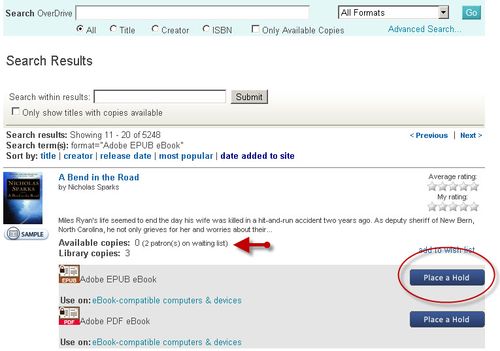
Use the ‘Place a Hold’ button to add your name to the waiting list. You’ll be prompted to log in with your library card number and pin if you haven’t already. You’ll also be asked to confirm your email address.
What happens when I place an item on hold?
A title you place on hold will be reserved for you to check out once it becomes available. You can place up to 10 titles on hold at a time. When the title is available for you, we will email you instructions on checking the item out.
The item will be held for you for 4 days after we email you.
How can I view my holds?
Log in to the Overdrive home page http://toronto.lib.overdrive.com
Click the Account tab – if you aren’t logged in already, you’ll be prompted to log in with your library card number and pin.
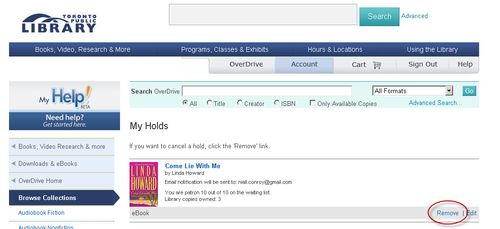
Click the 'My Holds' link.
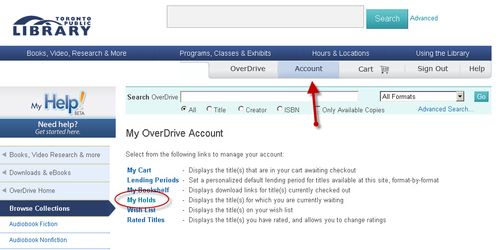
The titles that you have currently placed on hold are displayed.
How can I check out my holds?
If you have received a notification that your holds that are available they will have an 'Add to Cart' option at the very right of them, while unavailable holds will have the 'Remove | Edit' options. Select 'Add to cart'
You will be directed to your cart, and your hold will no longer be in the Holds section but will be transferred to your cart. Items in your cart have a 30 minute time limit to check out.
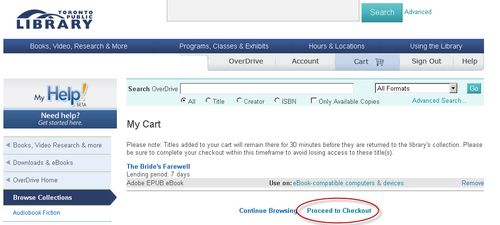
Click 'Proceed to checkout', then select a loan option from the pull-down menu: 7, 14, or 21 days. When you have selected your loan period, click 'Confirm Check Out'.
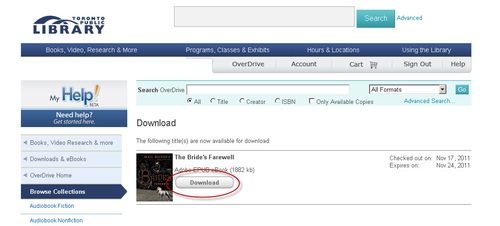
A download link appears allowing you to download it to your computer. There is no need to immediately download it. The item is kept in your Bookshelf under the 'Account' section, and will be available for download during the lending period.
How can I cancel my holds?
When you are viewing your Holds in the Account section, items still unavailable will have a ‘Remove| Edit’ link next to them. Select ‘Remove’ to cancel the hold on the item.
4 thoughts on “Managing your eBook holds”
There doesn’t seem to be a way to make a hold on an e-book “inactive” as there is for other Library materials. Can this option be added so I don’t get too many e-books at once?
Thank you for your comment. You’re correct – currently it is not possible to make ebook holds inactive. We’re currently working with OverDrive to implement several system changes to make features more usable for our customers, and the ability to make holds inactive would certainly fit this category. We will note this request so that it might be included in future versions of our Overdrive site. Stay tuned to this blog for improvements to our ebook services coming soon.
Is there any hope of seeing OverDrive holds presented (and managed) from the TPL MyAccount “HOLDS” display? This would seem to be the best option for patrons – to see all holds in one place.
When using an in-branch terminal to search the catalogue, access to OverDrive items is blocked.
If I’m searching for an item and find it is not available in my branch, often my option is to place a hold on the physical item or borrow the OverDrive version. But I can’t make that choice as patrons are prohibited from determining if the OverDrive version is available.
The displayed messages states access to OverDrive is blocked due to bandwidth issues. If this is truly the case, then restrict downloading from OverDrive, not browsing the inventory.
Given the small size of eBook files, is bandwidth really an issue?