Getting Started with Mango Languages
Mango Languages is a language learning resource offering courses in more than 70 languages as well as English-language courses for non-English speakers in their own language. Interactive exercises incorporate culture notes, vocabulary and grammar.
How to access Mango Languages
- Go to Mango Languages or https://tpl.ca/resource/mango-languages/
- Select Mango Languages >> (the title)

- Enter your username or your 14-digit library card number (no spaces) and PIN/Password. Select Log in.
How to use Mango Languages
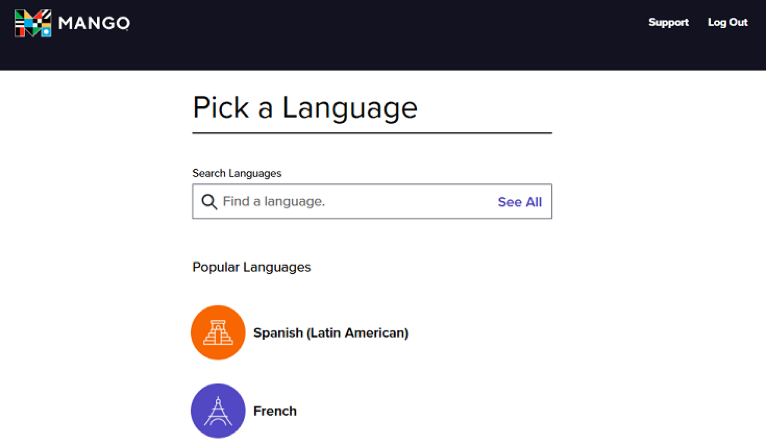
Get started by selecting a language course. Pick a language from the list of popular languages, select See All to view the full list of language learning courses, or search for a language by name.
Create a Profile
Although you can use Mango Languages as a guest user, creating your own profile is recommended. A personal profile is required to track your progress in a course and to use the Mango Languages app.
From within any of the language learning courses:
- Select Guest User at the top right and then select Create a Profile.
- On the Create Your Profile page, enter your email address and a password of your choice. Select Sign Up.
From the Pick a Language page:
- Select Log Out to log out as a guest user.
- On the Toronto Public Library Log In page, select Sign Up (located after Don’t have a profile?)
- On the Create Your Profile page, enter your email address and a password of your choice. Select Sign Up.
Language Learning Courses
Language learning content is organized into four sections: Learn, Vocabulary, Explore, and Tools. Not all language courses will offer all four sections of content.

Learn
Learn is the core section of the language course material. The main units offer lessons on conversations, reading and listening as well as recaps and quizzes. Some courses also offer specialty units. These focus on specific topics such as cultural events or unique cultural aspects of a language.
Many courses have a placement test to help you find out where to start. If one is available, the link will be available just above the main units.
Vocabulary
Use the vocabulary exercises in this section to practice the vocabulary available in a chapter, unit or in the full course.
Explore
The Explore tab connects you with features that will stretch your language skills and expand your cultural horizons.
Tools
Use the Translate tool to translate a word, a phrase or a sentence from one language to another.
Start Learning with Mango Languages

- Select Unit 1 and then select Start Learning.
- The course will begin with a tutorial introducing Mango Language courses. Select the arrows to move through the Tutorial, or select Skip Tutorial.
- Review the Conversational and Grammar Goals for the chapter. Select Start to begin the first lesson in the chapter.
- You can stop a lesson and exit to select a different lesson from Chapter 1, a different chapter or different unit.
Tips for using Mango Languages
- When in a lesson, select Course Settings in the upper right-hand corner (gear icon) to make changes to the volume, narrator, closed captions, quiz timer and interactive quiz slides.
- When in a lesson, select the keyboard guide in the upper right hand corner (three arrows icon) to learn how to navigate with your keyboard instead of computer mouse.
- Select any unit to view the number of chapters and lessons available.
- Select Goals to view the conversational and grammar for that chapter.
- To select a different language, select the icon associated with the current language, or the name of the language itself. In the slide-out window, search for a new language or scroll down the list of languages available.
Mobile App
The Mango Languages app is available for both iOS or Android devices.
Create a Mango Languages profile through their website before opening the Mango Languages app (recommended)
- Start by creating a profile through the Mango Languages website (see How to Access Mango Languages and Create a Profile above)
- Download and install the Mango Languages app.
- Open the Mango Languages app and select Login.
- Sign in with the email address and password used to create your profile.
Create a profile through the Mango Languages app
- Download and install the Mango Languages app.
- Open the app and select Get Started Free (not Sign Up)
- Use the arrows to move through the tutorial or select Skip.
- Pick a language that you would like to learn.
- A screen will display containing information about personal plans. Scroll down to find the Search for Free Mango option. Select Search
- Create your profile by entering your email address and a password of your choice and select Sign Up.
- In the search box on the Search for Access screen, search for ‘Toronto Public Library’.
- Select Toronto Public Library, Toronto, ON (don’t select Toronto, KS).
- On the Unlock Access to Mango screen, select Continue.
- Enter your TPL username or library card number and PIN. Select Log In.
- On the Success! screen, select Continue to start learning through the Mango Languages app.
Help with Mango Languages
- Select Support in the Mango Languages website app or go to: https://support.mangolanguages.com/hc/en-us
- Schedule a Book a Librarian appointment at a local branch.
- Contact us with your questions.
Comments