Getting Started with Naxos Music Library

Naxos Music Library is an online, streaming music library that allows you to listen to great music spanning medieval to modern, and find expert educational content. It boasts over 190,000 albums.
How to access Naxos Music Library
It can be accessed either through our A-Z list of Databases or via the method below.
- Go to tpl.ca and enter Naxos Music Library in the search box
- Click on Access Online under Naxos Music Library
- Enter your library card number and PIN
Searching
Search by keyword(s) from album or track title, artist, composer, etc. in the search box on the top right of the home page.
Use Advanced Search to:
- Restrict search terms to fields (composer, artist, group, instrument, label, country) and combine these fields in a search; or
- Search by instrument or by the country a composer was born, lived or worked in most of their life.
Browsing
Browse by New & News (recent additions, new releases, news), People (artist or composer), Categories (genres), or Labels.
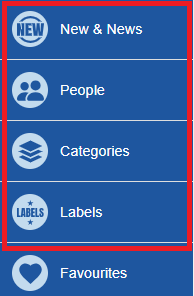
- New & News is subdivided at the top of the page into Recent Additions, New Releases, and News.
- People is divided into composers or artists.
- Categories include orchestral, concerto, opera, instrumental, chamber music, vocal, choral – sacred, choral – secular, vocal ensemble, ballet, operetta, wind ensemble/band music, film and TV music, contemporary instrumental, contemporary jazz, world, pop, rock, and Chinese music.
- Labels. There are hundreds from ABC Classics to Zig-Zag Territoires and include the catalogues of the likes of Warner, EMI, and others. You can find Naxos' own labels here as well, such as Naxos AudioBooks, Naxos Rock Legends, and Naxos World Music.

Listening
Listen to an album by:
1. Clicking on the album image or the artist/title line in the search results.
2. Then click on “Select All” (on the album page).
3. Then click on the play button.
To listen to one or more tracks:
1. Tick the box(es) next to the track(s).
2. Then click on the play button.

Playlists and Favourites
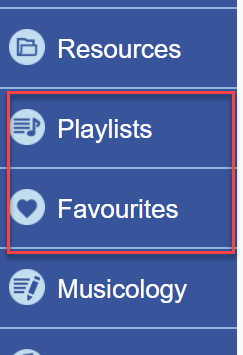
To create a playlist:
- Find a track or album you would like to add to a playlist, then click on the add-to-playlist symbol.
- If you do not yet have your own account, you will be asked to sign up for one (name, email, password) and log in.
- In the window that pops up, create the playlist you want the track(s) to be on (or give the location of a playlist you’ve already created).
- Click on the “Add to Playlist” button at the bottom of this window.
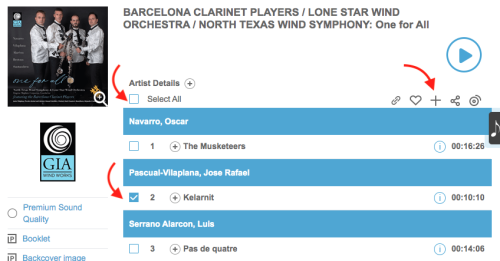
Favourites are created in the same manner, but by selecting the heart symbol instead. This can be found to the left of the add-to-playlist symbol.
Resources and Dictionary
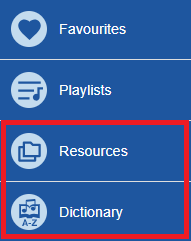
The Resources section includes work analysis, guided tours of different eras in music, musicological research and aural training exercises
The Dictionary section focuses on musical terms, composers and instruments. Many of the entries are enhanced with audio and manuscript examples..
Mobile App
Download the free iOS or Android app. Sign in using the email and password you used in your Playlists account.
NOTE: An internet connection is required to stream the content. Using cellular data is not recommended as streaming multimedia content can consume a lot of bandwidth. Wi-Fi is available at all Toronto Public Library branches.
For more information or for help, please contact our Answerline service.
Comments