Getting Started with Scott’s Canadian Business Directory

Scott’s Canadian Business Directory provides detailed information on Canadian manufacturers, industrial companies, wholesalers, distributors, and business services.
Company profiles include the company’s name, address, telephone numbers, website address, business type, products or services, number of employees, sales and year established. Contact profiles include name, job title, company name and profile.
How to access Scott’s Canadian Business Directory
- Go to Scott’s Canadian Business Directory (https://tpl.ca/resource/scotts-canadian-business-directory/)
- Select Scott’s Canadian Business Directory>> (the title) on the Online Resource page.

- Enter your username or library card number and your password/PIN and then select Log In.
Searching Scott’s Canadian Business Directories
- To search by City, Postal Code or Census Division, first go to the Province filter and select the check box next to the associated Province (do not select Add). Next, select the City, Postal Code or Census filter to display the drop-down list of cities, postal codes or census divisions. Select the applicable check box for your search criteria and then select Add.
- As one or more search criteria are added, the number of results with these criteria is updated in the filter area at the top of the page.
- Search by Contact results lists cannot be downloaded/exported.
- Search by Company results can be downloaded to PDF in Summary View through the Print Centre. They cannot be exported in another format.
- Select Clear Criteria/Filters or select the Scott’s Directories logo to start a new search.
Search by Contact
There are over 2 million business contacts in Scott’s Canadian Business Directory. Add filters/criteria (name, job role, company name, industry etc.) in the text field boxes and/or select from a drop-down list. Select Add to include your criteria to the filter area at the top of the page.
Search by Contact example:
Let’s search for people with the job title of Sales Manager in businesses with postal codes starting with M5H.
- Select Search By Contact from the left-hand menu
- Select the Job Role filter, and type in Sales Manager in the search box for that filter.
- Select the check box next to Select all to search all of the job roles listed. Select Add in the Job Role filter. The number of Contacts with these criteria will be updated at the top of the page.
- In the Province filter, select Ontario. Do not select Add this time.
- In the Postal Code filter, enter M5H and then select it from the list of options. Select Add in the Postal Code filter.
- The number of contacts will be updated and the selected filters will be listed at the top of the page. Select See Results to view the list of individuals with profiles that meet these criteria.
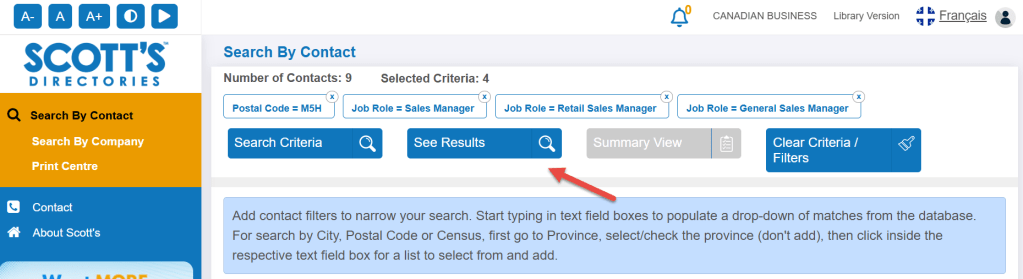
- Select the Company Name to view the contact profile for an individual in the results list. Search by Contact results lists cannot be downloaded/exported.
- Select Clear Criteria/Filters to start a new Search by Contact.
Search by Company
There are approximately 1 million companies listed in Scott’s Canadian Business Directory. Add company filters/criteria (name, location, estimated sales, number of employees, product/NAICS etc.) to the filter area at the top of the page to create a list of companies.
Search by Company example:
Let’s search for companies in Toronto with sales in the range of 10 – 25 million and with a minimum of 250 employees.
- Select Search By Company in the left-hand menu.
- In the Province filter, select the check box for Ontario. Do not select Add.
- In the City filter, start typing Toronto in the search box for that filter and then select the check box for Toronto, ON. Select Add.
- Under Estimated Sales, select the check box next to 10-25 Million. Select Add.
- Under # of Employees, type 250 in the Min search box and then select Add.
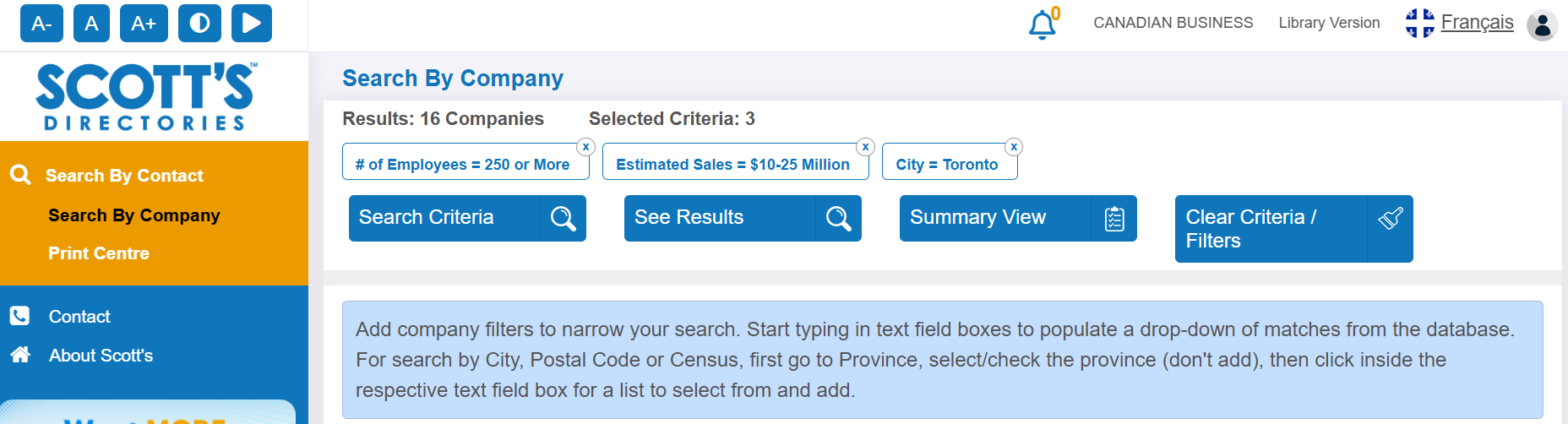
- Select See Results to view a list of company names in alphabetical order.
The filters and the number of companies in the search results will display at the top of the search screen.
Search by product or NAICS Code
Another useful criterion for searching is the North American Industry Classification (NAICS) Code. To locate the NAICS code for a particular industry or product, use other criteria to locate some companies in this industry to find the appropriate NAICS Code(s). Another option is to search the NAICS page of the Statistics Canada website.
Search by product and business type example:
Let’s search for washing machine wholesalers in Canada.
- Make sure that Search By Company is selected in the left-hand menu.
- Find the Products filter in the fourth group of filters and enter ‘washing machines’ in the search box. Select WASHING MACHINES from the list of options. Select Add.
- Under Business Type, type in ‘wholesaler’ in the search box, then select the checkbox next to Wholesaler in the list of options. Select Add.
- Select See Results to view the list of companies with these two criteria.

Search by NAICS code example:
To broaden the search to companies in the same industry classification, use the NAICS code.
- Continuing with the washing machine wholesaler example above, select one of the companies in the search results. Open the profile and review the NAICS listed for that company. Note the code(s) that best matches the search. For the example of washing machine wholesalers, the code 414220 – Household Appliance Merchant Wholesalers is the best match.
- Select Clear Criteria/Filters.
- Return to the Search by Company search screen. Under Primary NAICS Code, type 414000 in the search box for that filter. Select 414000-Personal and Household Good Wholesaler-Distributor from the list.
- Under NAICS Subcategory Code, type 414220 in the search box for that filter and select the check box for 414220-Household Appliance Merchant Wholesalers from the lists. Select Add.
- Select See Results.

Viewing search results
- Search results are limited to 20 records per page. View all companies in the list through the First, Previous, Next and Last buttons above of the results.
- List the companies in alphabetical order, descending or ascending, by selecting the Company Name.
- Group the companies by location (in alphabetical order of location) by selecting the City
- View a company profile by selecting the name of the company. Go from one profile to the next using the First, Previous, Next and Last buttons at the top right, above the company profile.
- Select See Results or <<Back to return to the search results.
- Select Search Criteria to add more filters to the search and limit the results further.
Printing Search by Company search results
- Select Summary View for options for printing.
- To print, select Summary View. Select Summary View Settings to choose the fields to appear in the Summary View. Select the Summary View Print
- Select Generate Document.
- Enter the File Name of your choice and select Save. Note: Do not use personal information in the file name as this is a shared product.
- Select Print Centre in the left-hand menu to find the file by file name when it is ready. Select the file name to download the PDF document. Files in the Print Centre will be deleted at the end of the session.
Please note: Printing is only available for Summary View in Search by Company. Exporting of a Summary View list in another format is not available.
Help
- Contact Us with your questions.
- Schedule a Book a Librarian session at a local branch.
Comments